

Prerequisites
- A basic understanding of HTTP and REST
- Bruno installed (v3.x)
- Git (Needed for collaboration via Git)
- Node.js (Needed for the CLI workflow)
Getting started
You can refer to the Bruno Starter Guide collection for solutions: Fetch in Bruno button to open the collection in Bruno, or git clone the repository Bruno Starter Guide.
1. Create a collection
Objective: Create a collection (sequence of requests) to store your API requests.- Open Bruno (workspace home).
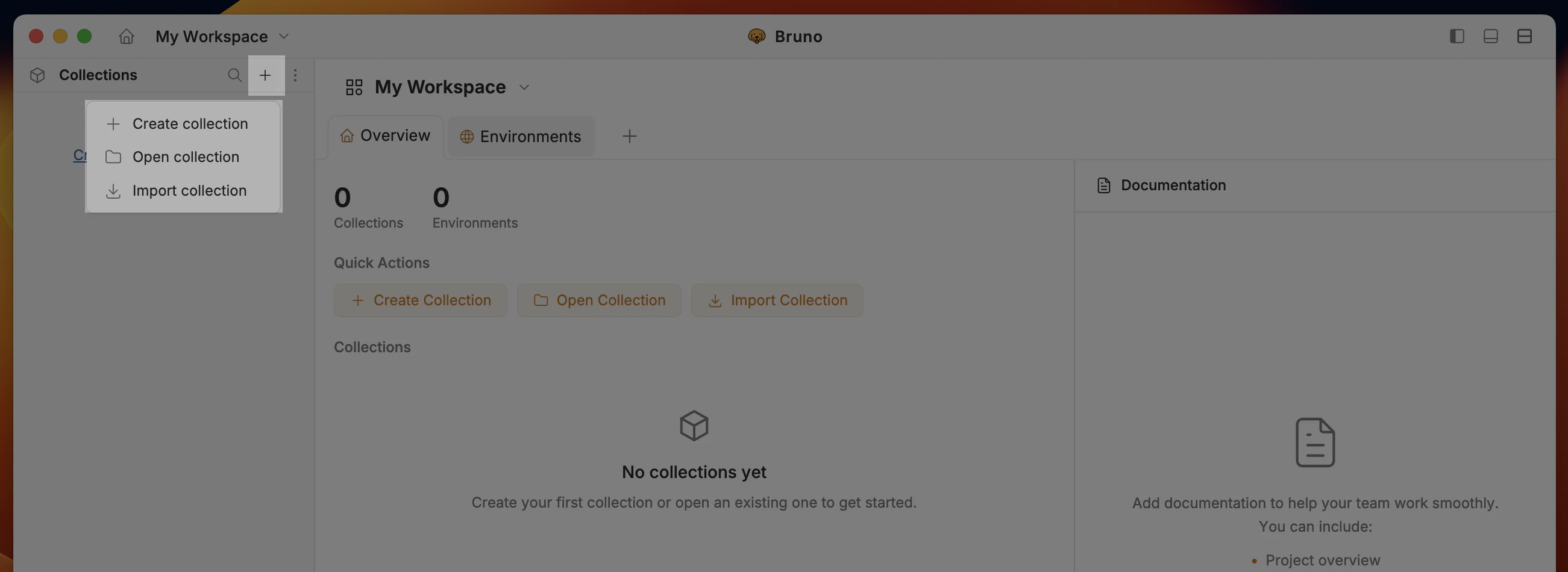
- Click the + icon (top-left) → Create collection.
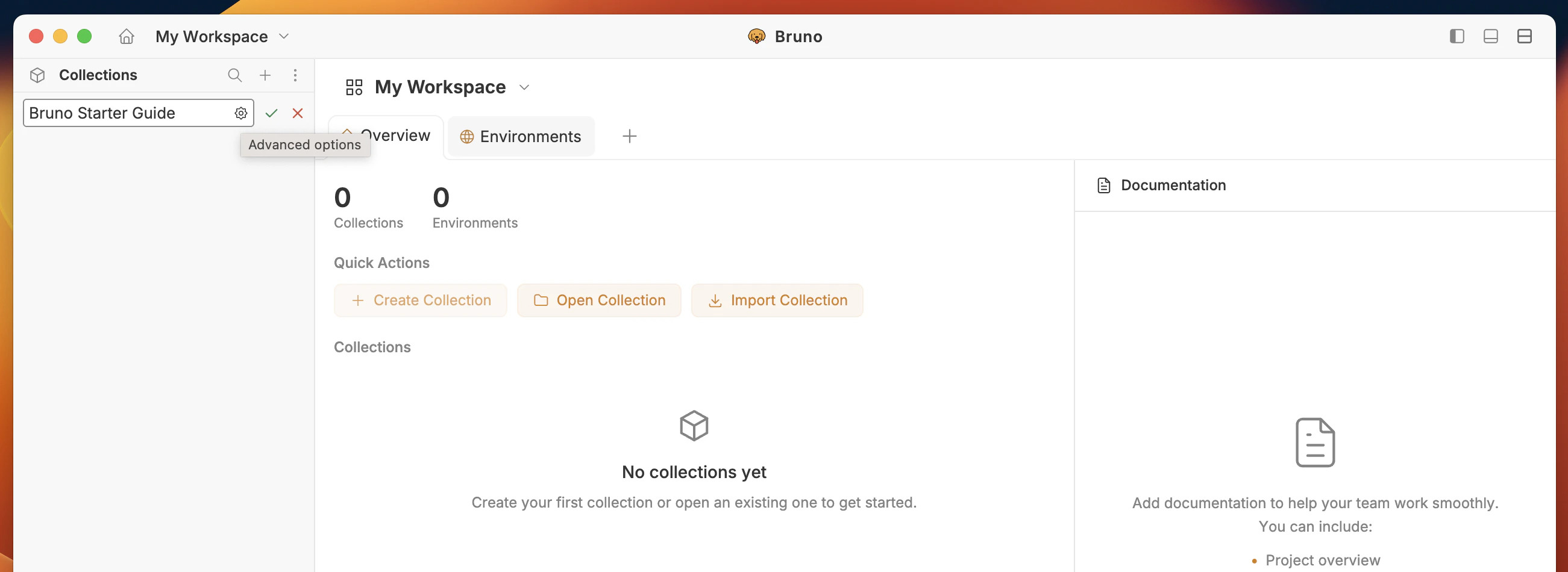
- Enter a name Bruno Starter Guide (click on settings icon for advanced options) and choose the desired folder on your system.
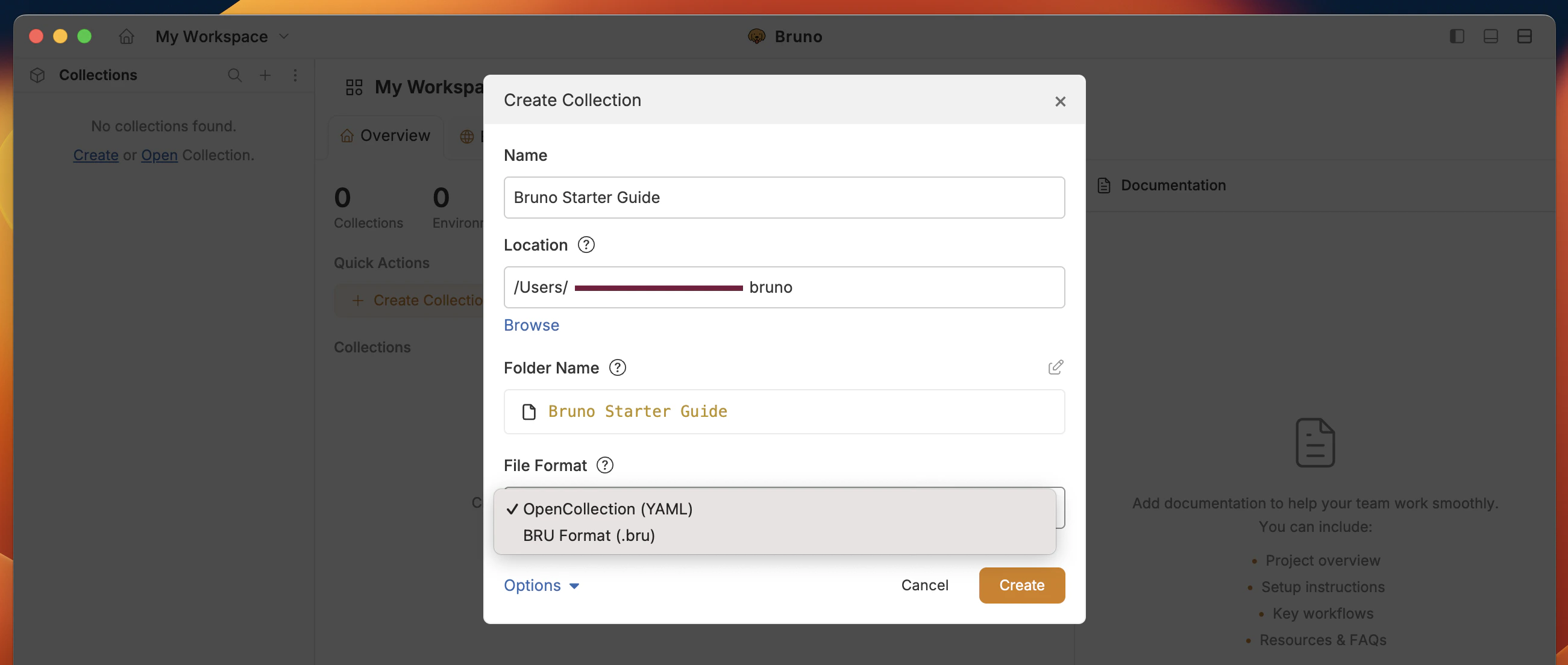
- Select file format (YAML or BRU -> YAML recommended) and click Create.
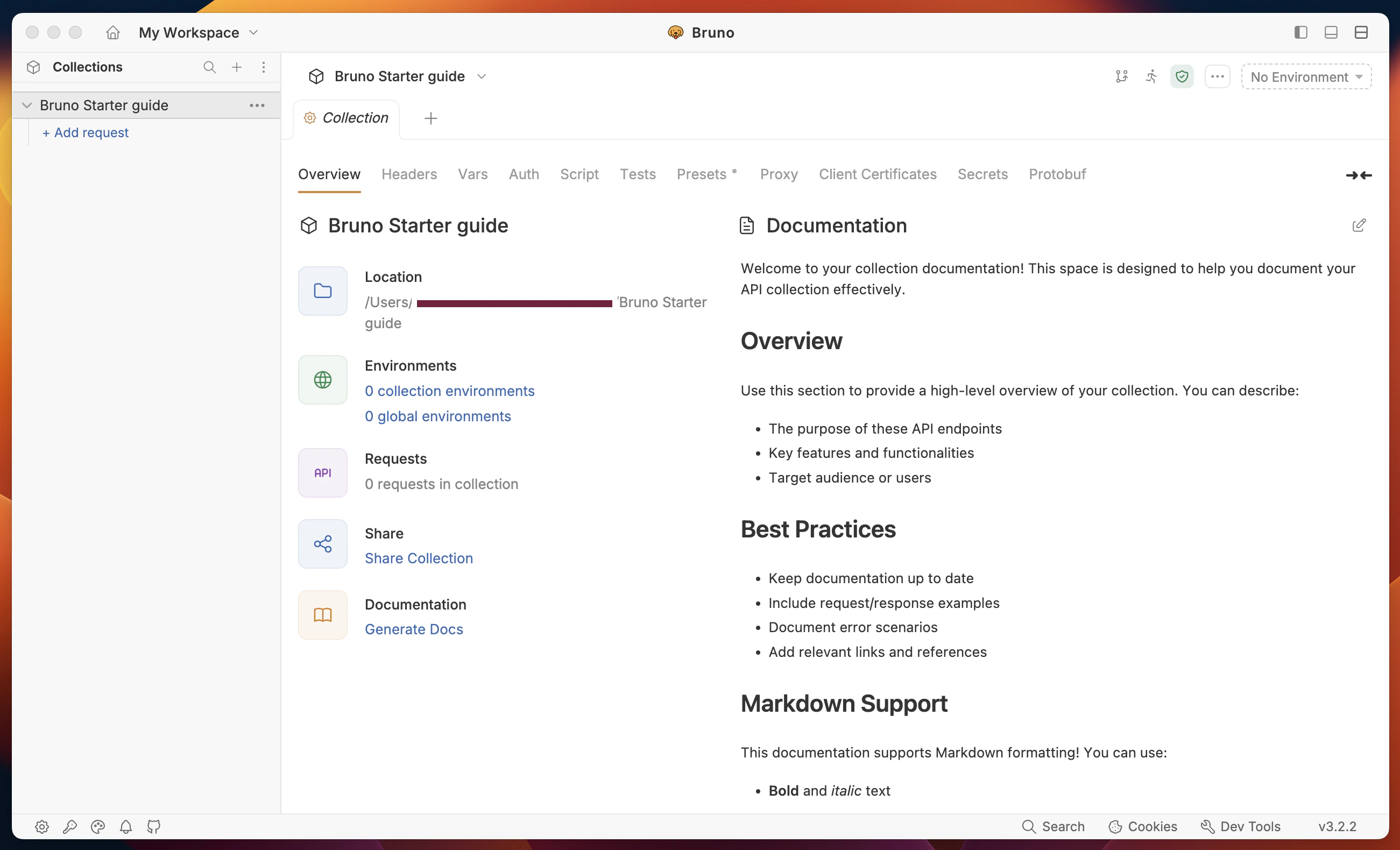
- Collection is visible in the sidebar with name Bruno Starter Guide.
- Collection is created with the desired file format (YAML recommended).
2. Create a request
Objective: Create and execute your first request from the collection.- Click the collection context menu (…) → create a New Request.
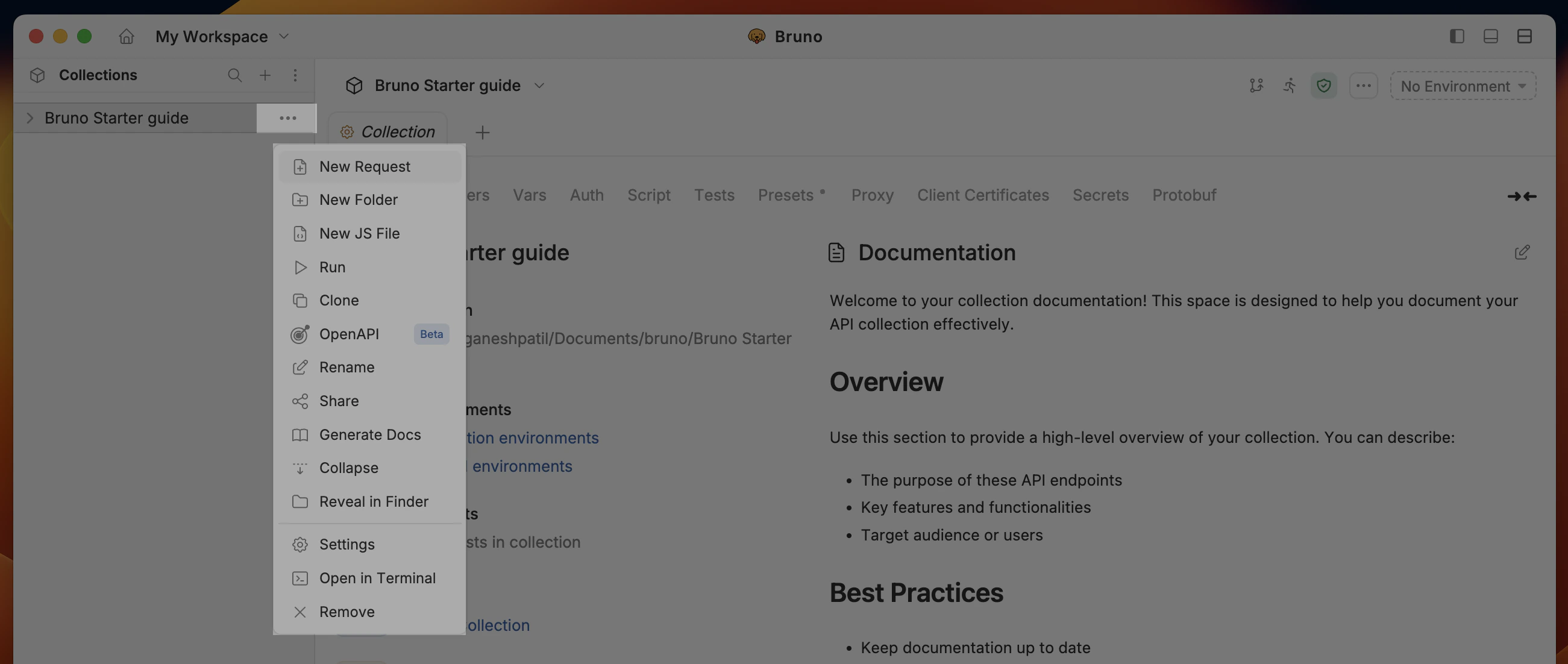
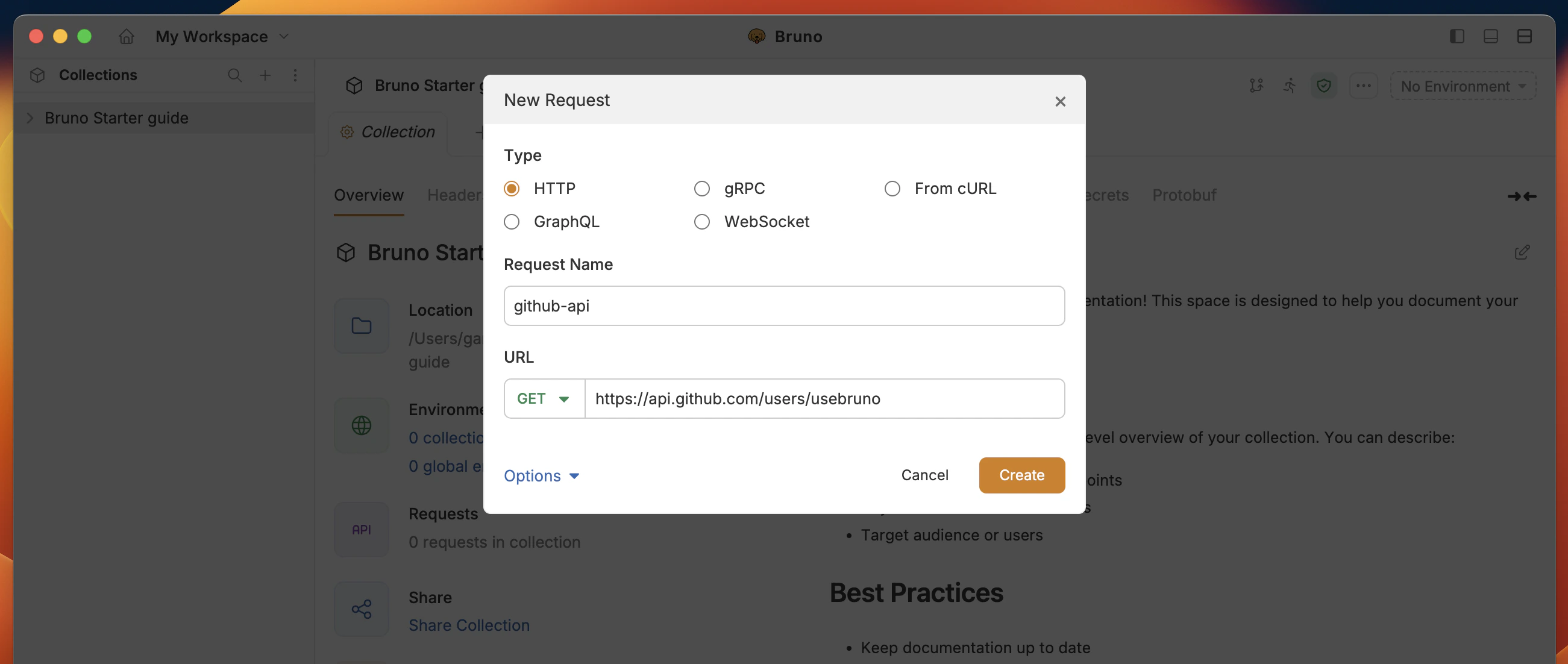
- Select:
typeHTTP - (GraphQL, gRPC, WebSocket, or cURL is also supported)Request Nameasgithub-apiURLashttps://api.github.com/users/usebruno.
- Send the request by clicking the arrow button or pressing Cmd/Ctrl + Enter.
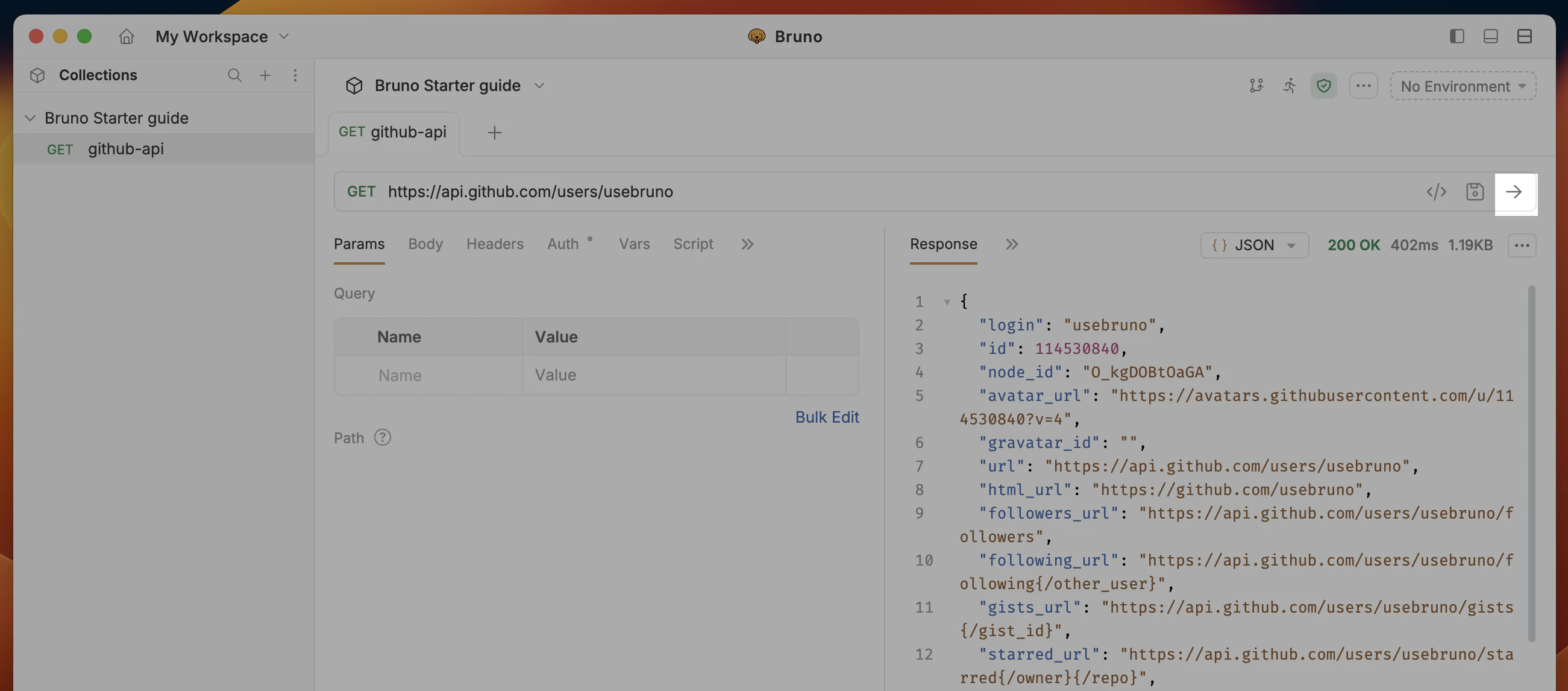
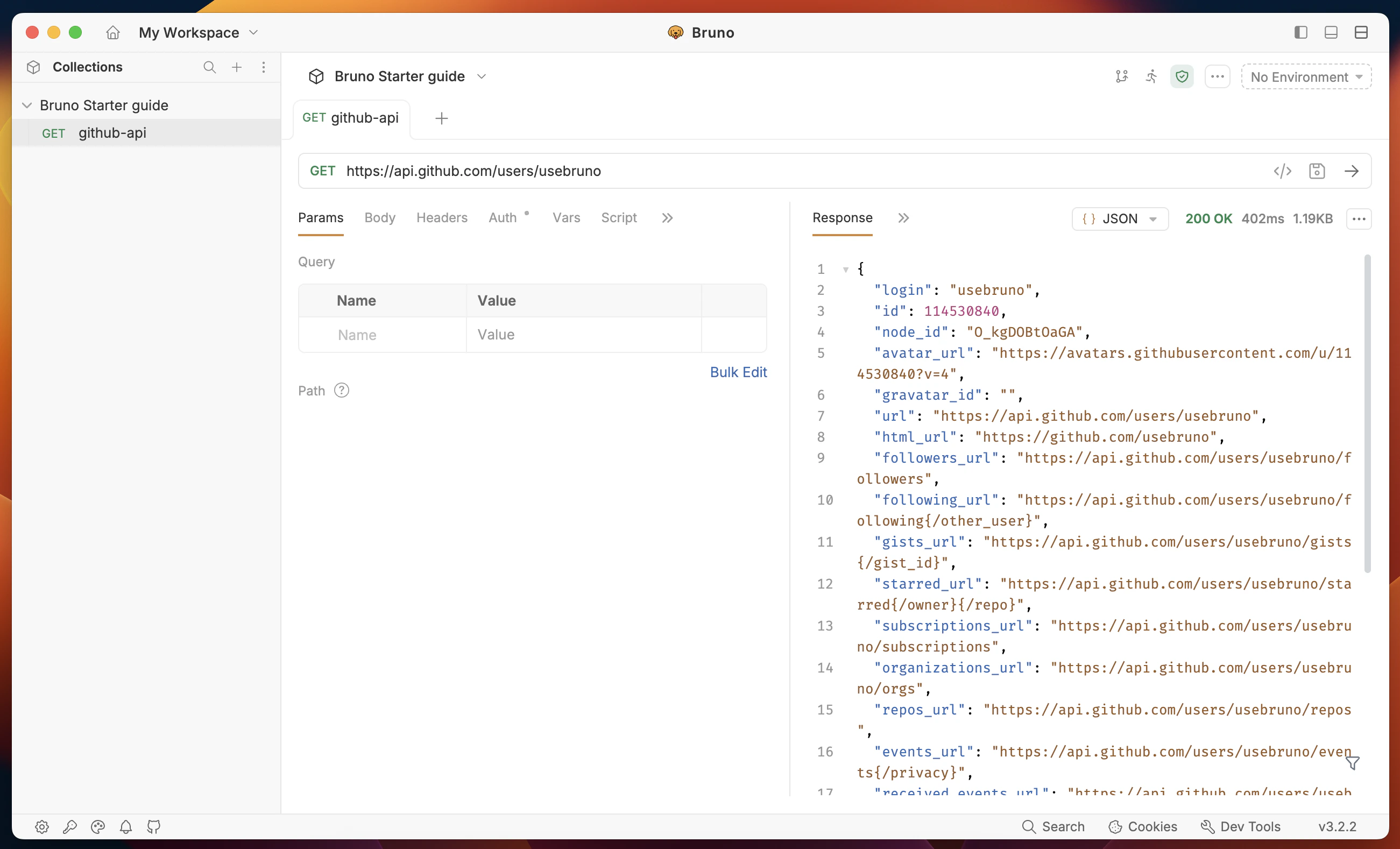
- Status is 200 (Green text - 200 OK)
- Response body with details of the
usebrunouser.
3. Send a request with data
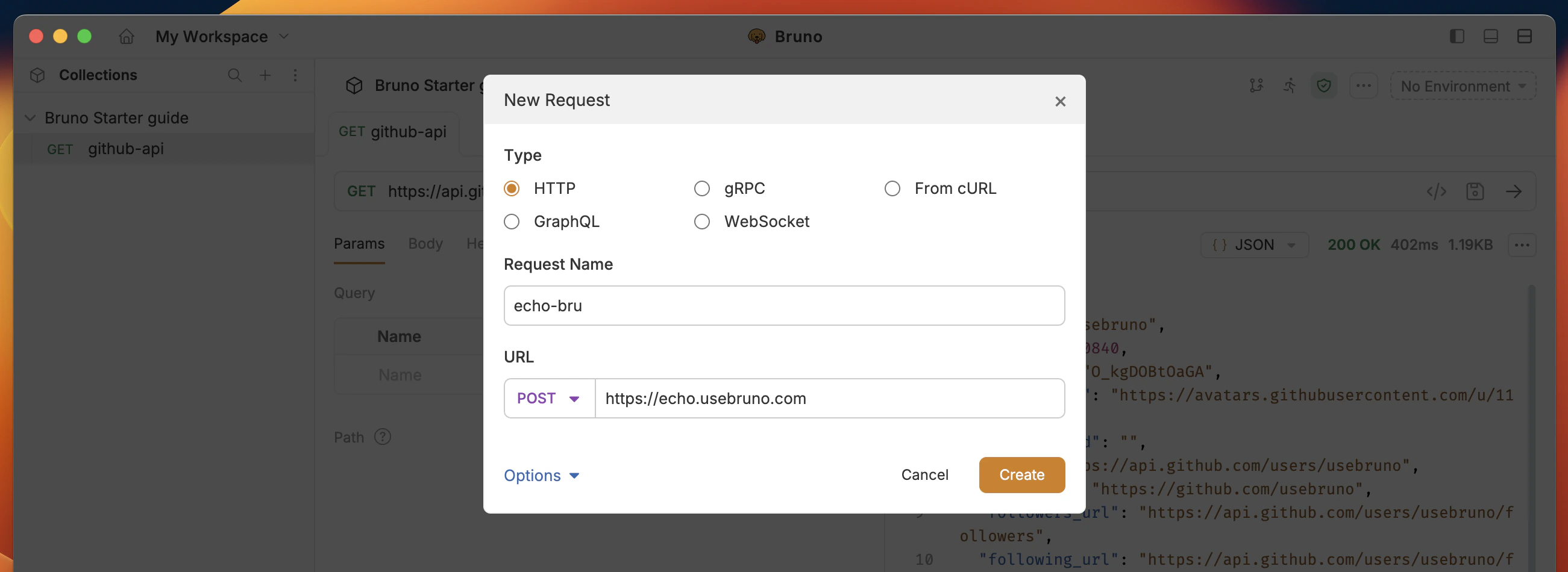
Objective: Create a request with POST method and send data with API request.- Create a new request with:
- Request type as HTTP
- Request name as
echo-bru - method as POST
- URL as
https://echo.usebruno.com
- Go to the Body tab and select → JSON as an option
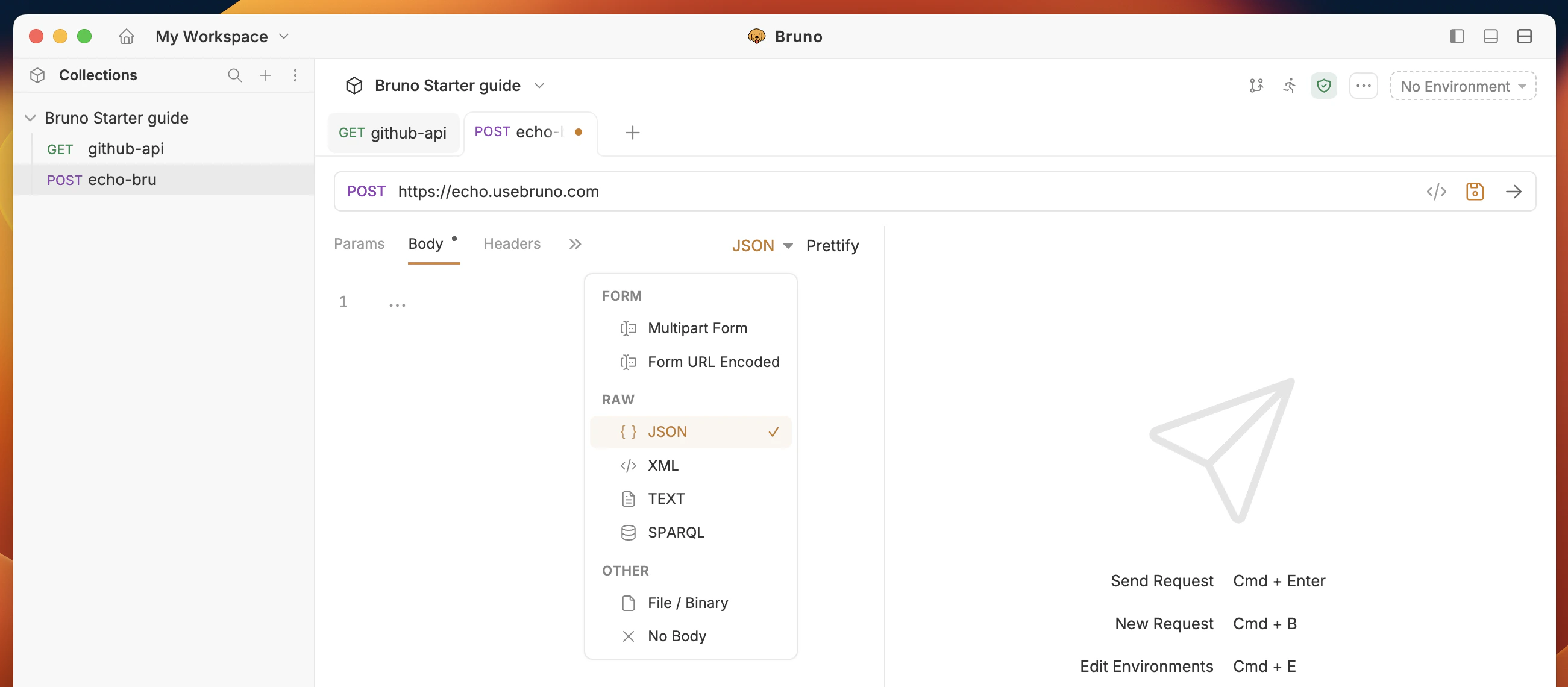
- Add the following JSON data to the body of the request:
- Execute the request by clicking the arrow button or pressing Cmd/Ctrl + Enter.
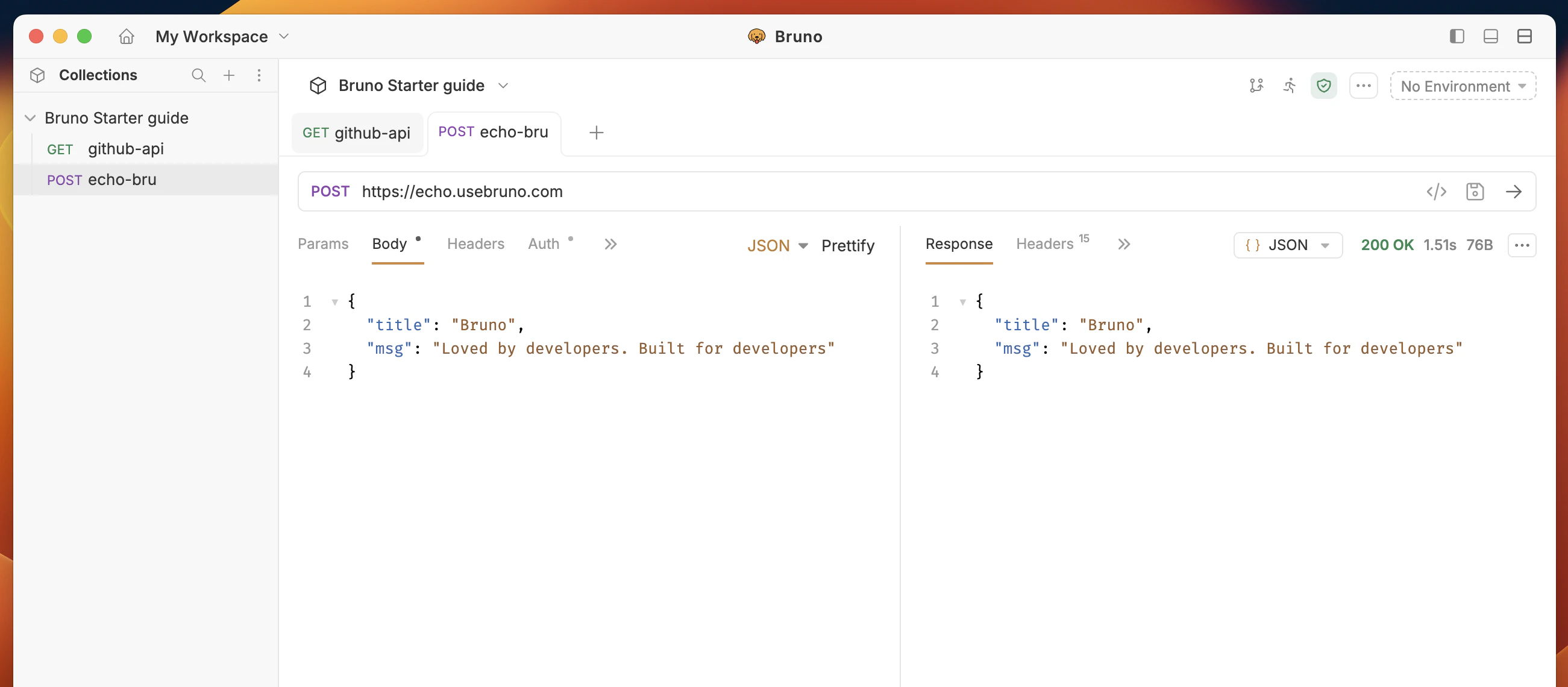
- JSON data is sent to the API.
- Response body contains the same JSON data.
4. Create an environment
Objective: Create an environment variable to store a URL and reuse it with{{baseURL}}.
- Open the Environments settings (top-right — No environment).
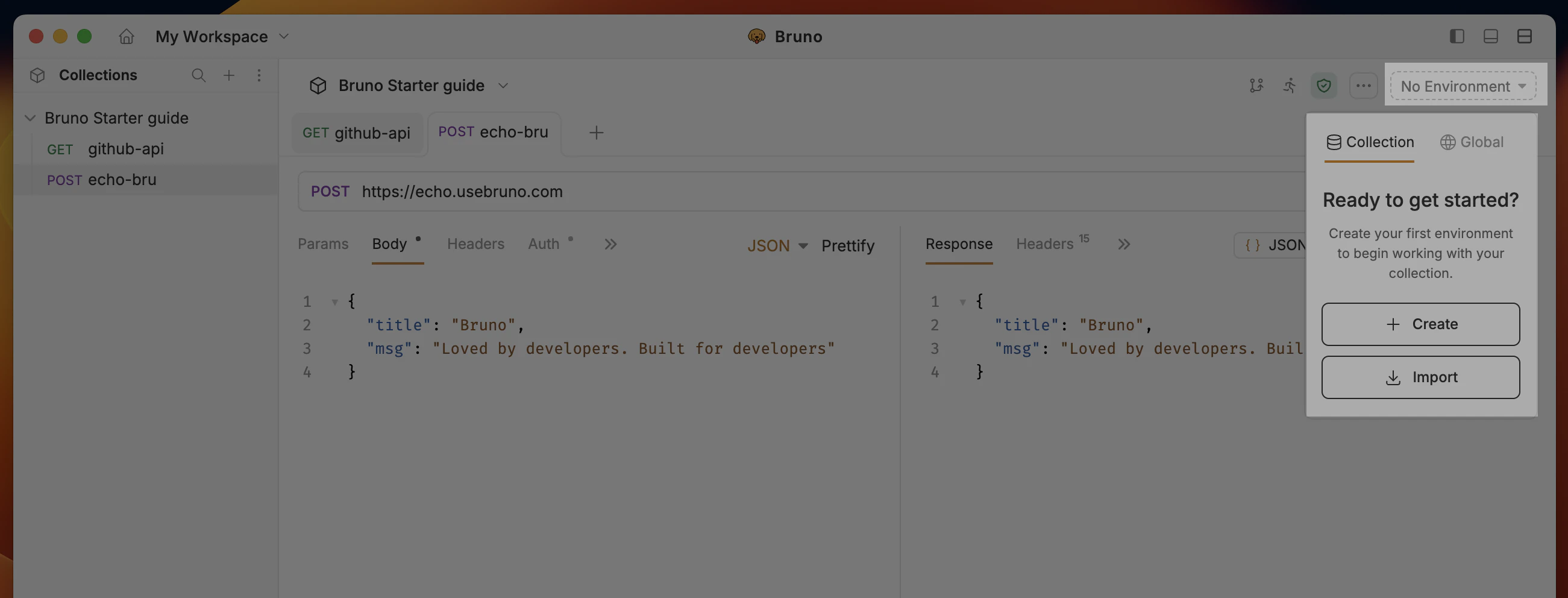
- Click the Create button in the Collection section.
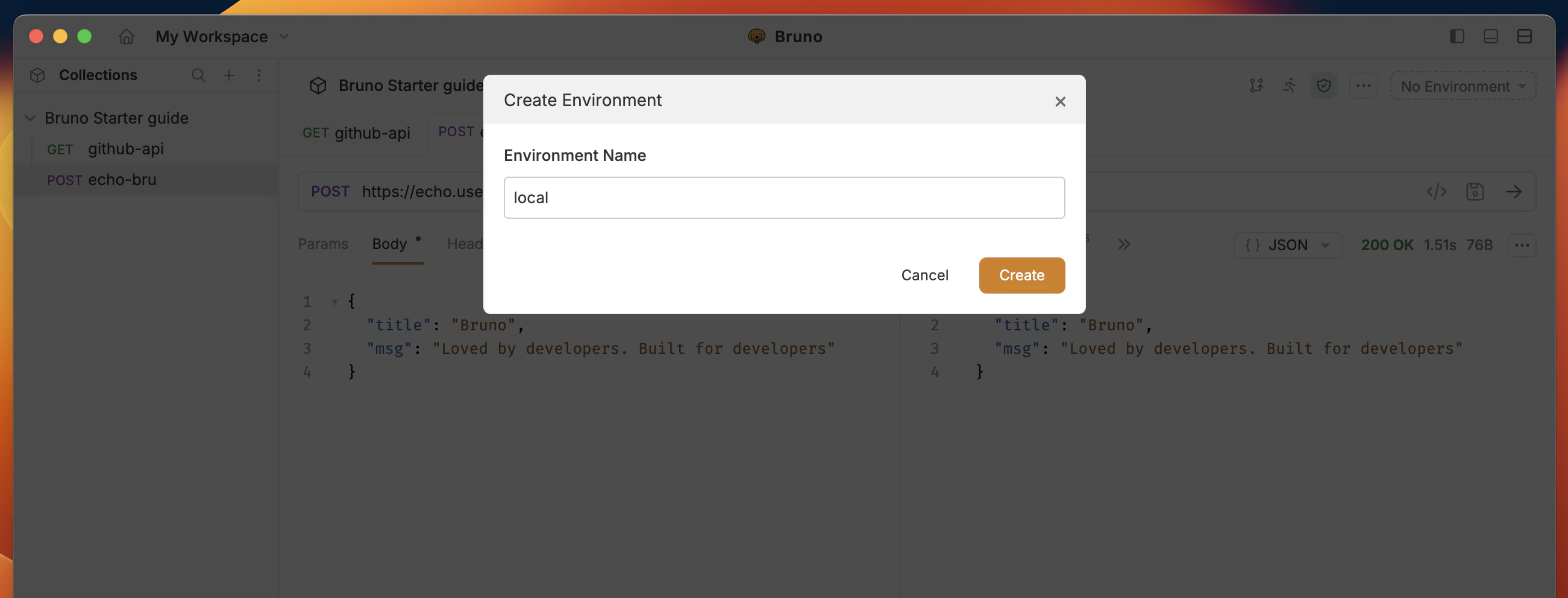
-
Name the environment
localin the environments popup
- Add the following variable to the environment:
- Name:
baseURL - Value:
https://echo.usebruno.com
- Name:
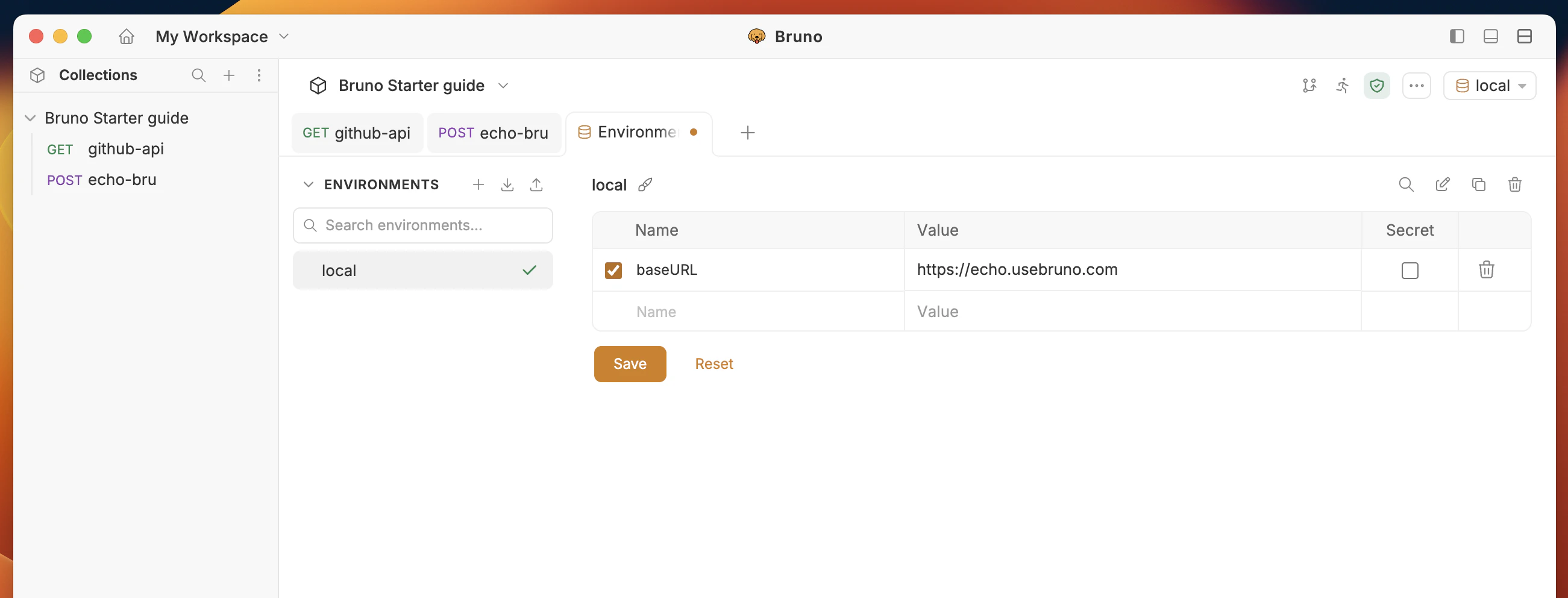
- Click the Save button.
-
Go back to
echo-brurequest and set theURLto{{baseURL}}and select thelocalenvironment from the environment dropdown.
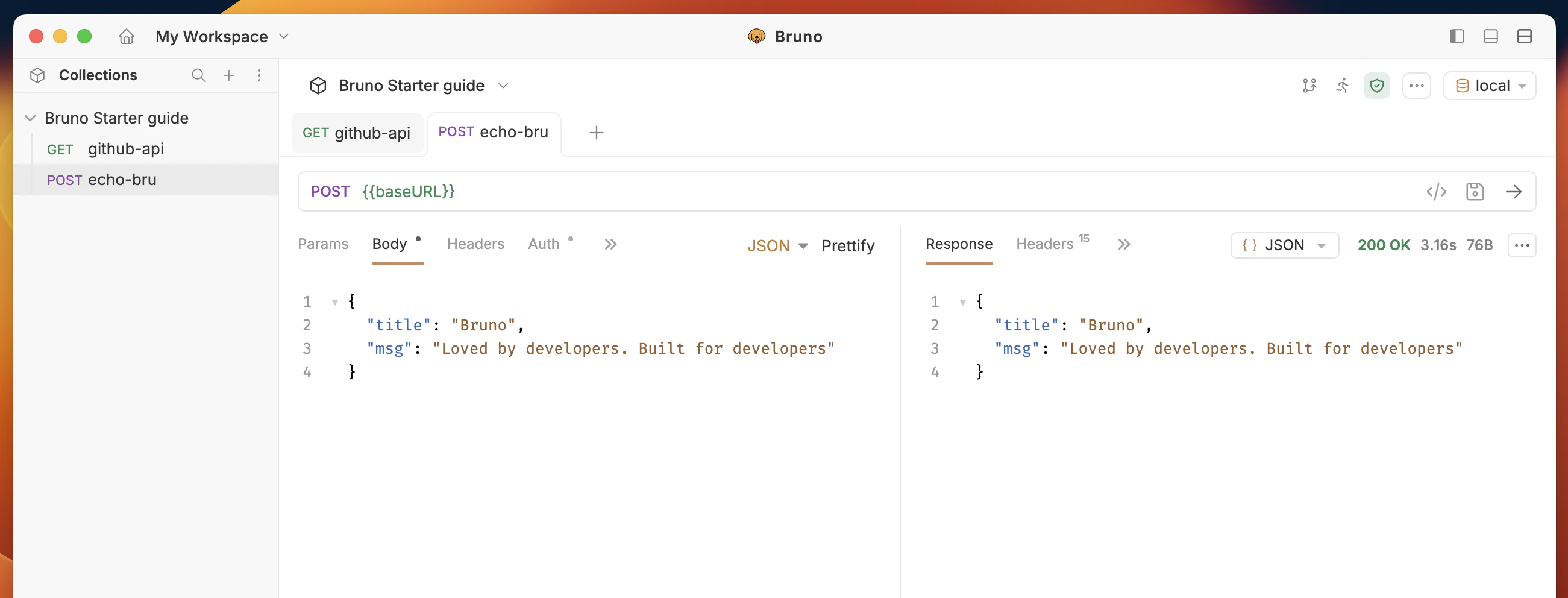
- Environment is created with the name
local. - Environment variable
baseURLis added with the valuehttps://echo.usebruno.com. - Request
echo-bruis executed successfully with theURLset to{{baseURL}} - Response status is 200.
5. Write a test case
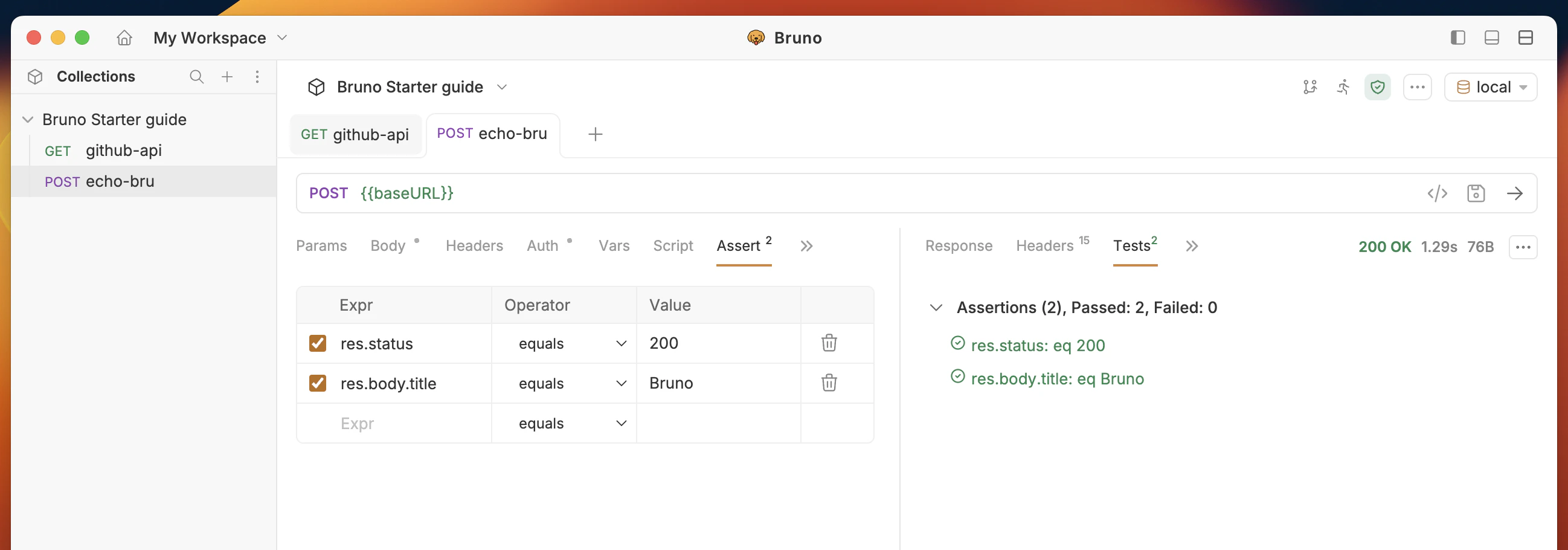
Objective: Write an assertion and test script to validate the response of the request.- Open your echo-bru request.
- Go to the Assert tab and enter the following details:
- Execute the request and go to the Tests tab in the response section to confirm the assertion passes (green).
- Go to the Tests tab in the request section and copy and paste the snippet below:
- Execute the request (Cmd/Ctrl + Enter) and confirm tests pass (green).
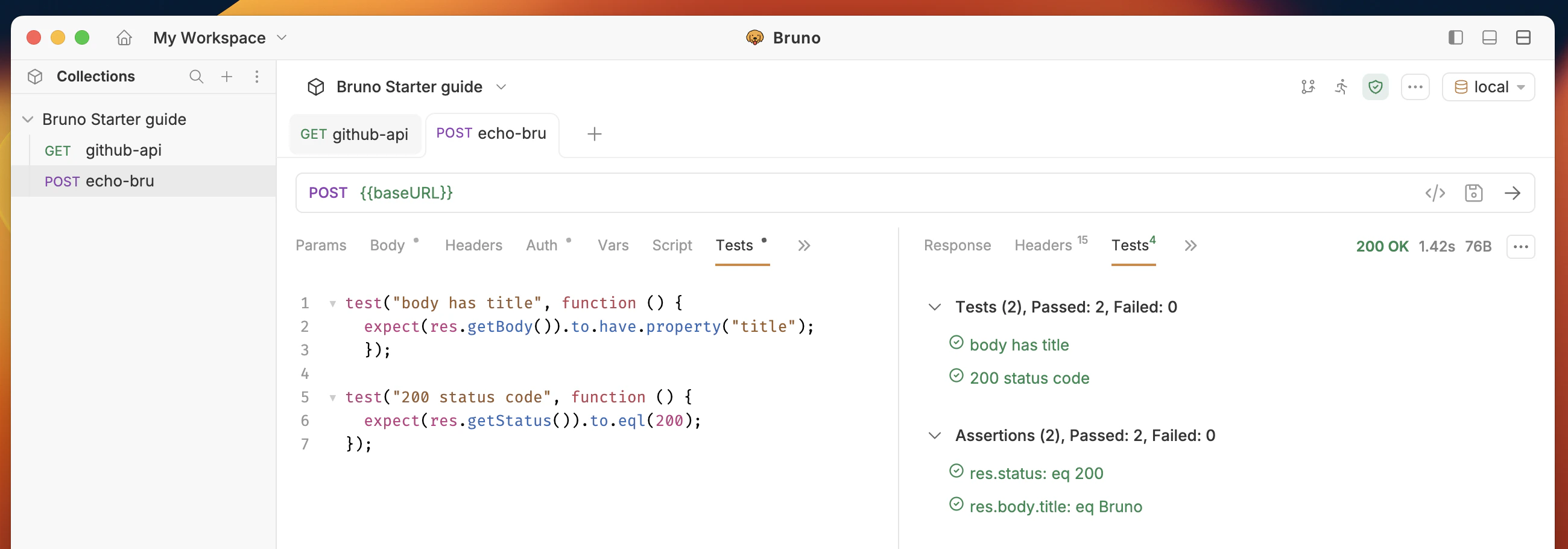
- Assert and Tests pass (green) without any errors.
6. Write a script
Objective: Send request with pre-request script to set the body of the request.req object is only available in pre-request script.- Create a new request with:
- Request type as HTTP
- Request name as
script-request - method as POST
- URL as
https://echo.usebruno.com
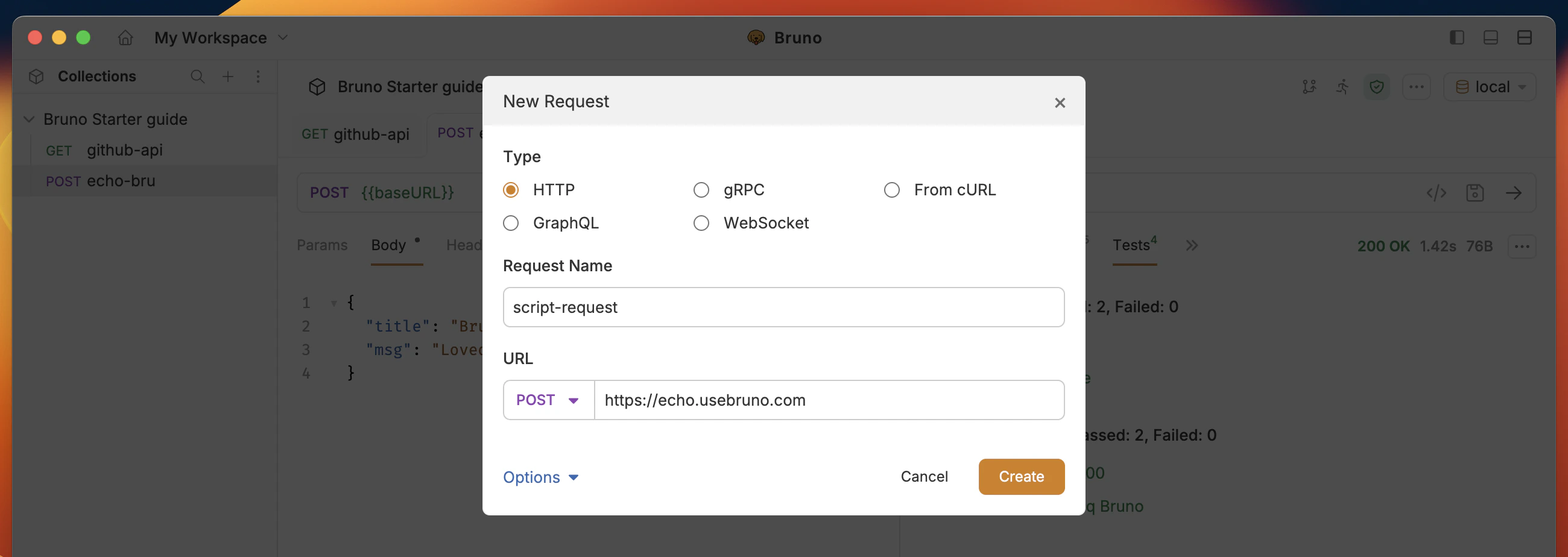
- Go to the Script → Pre-request tab and enter the snippet below:
- Execute the request and verify that the response body matches the body of the request.
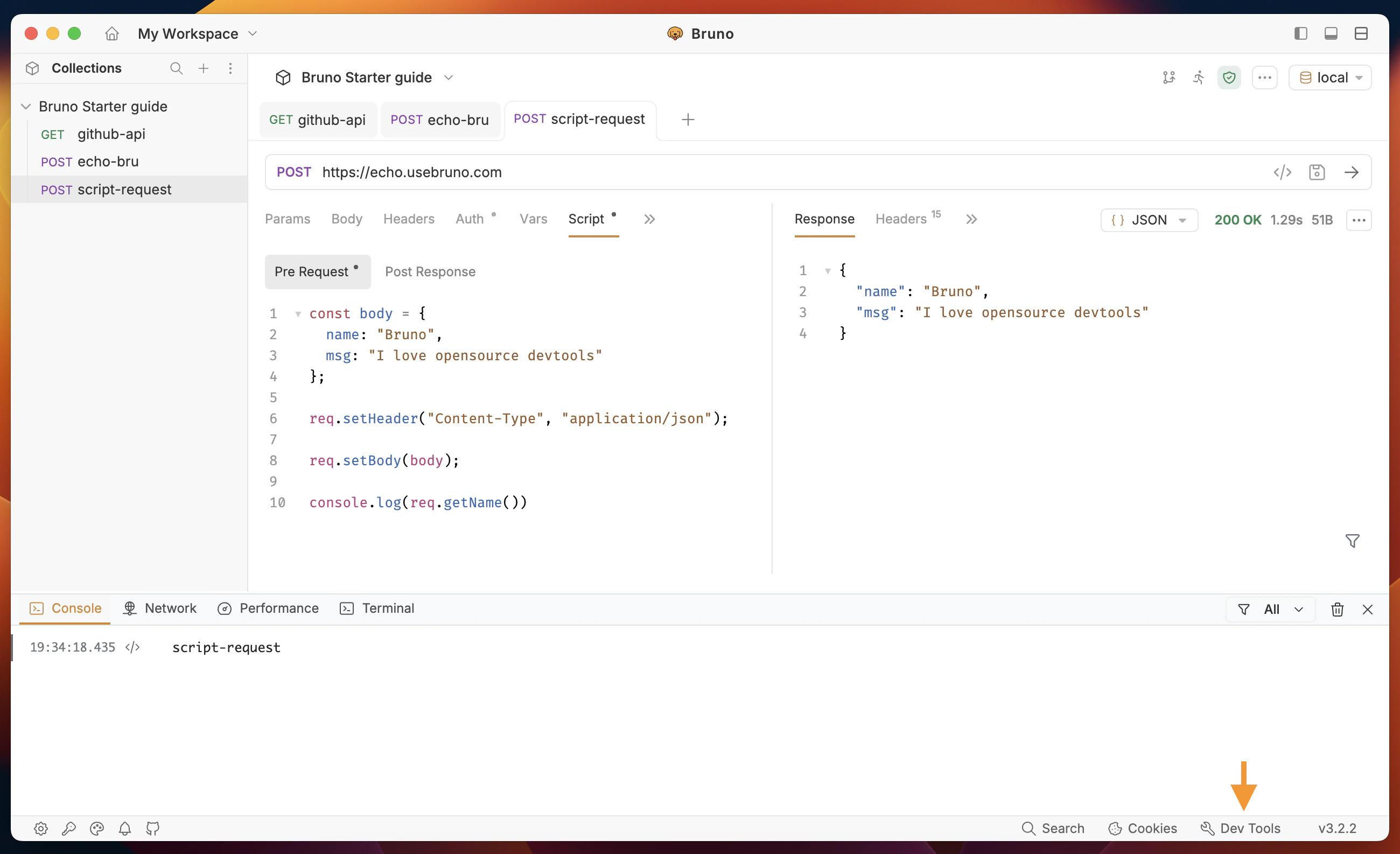
- Script is executed successfully and console output is visible in the Dev Tools.
- Response body is set to the body of the request with
req.setBody()function. - Header is set to the json content type with
req.setHeader()function.
7. Authentication
Objective: Send a request with authentication to the API.- Create a new request with:
- Request type as HTTP
- Request name as
auth-request - method as GET
- URL as
https://httpbin.org/basic-auth/usebruno/1234
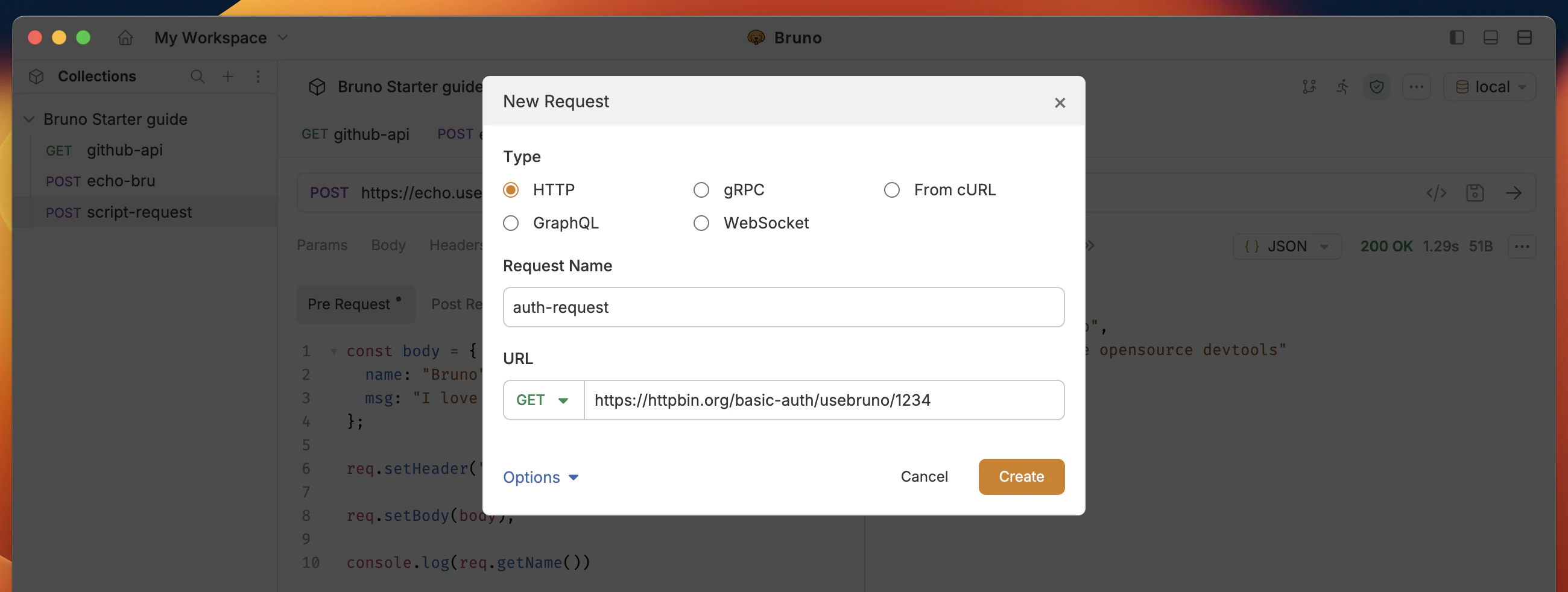
- Go to request Auth tab and select Basic Auth from the Auth Type dropdown list.
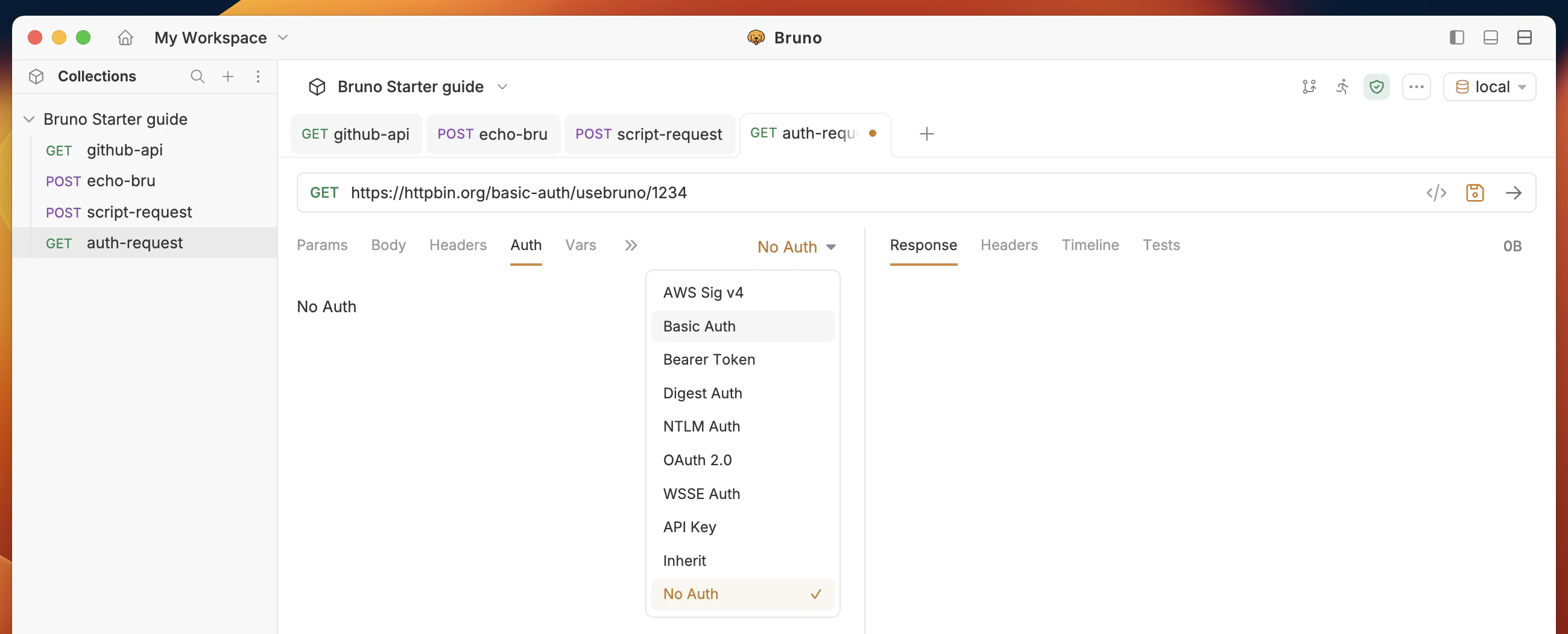
- Enter the username and password as
usebrunoand1234respectively. - Execute the request (Cmd/Ctrl + Enter).
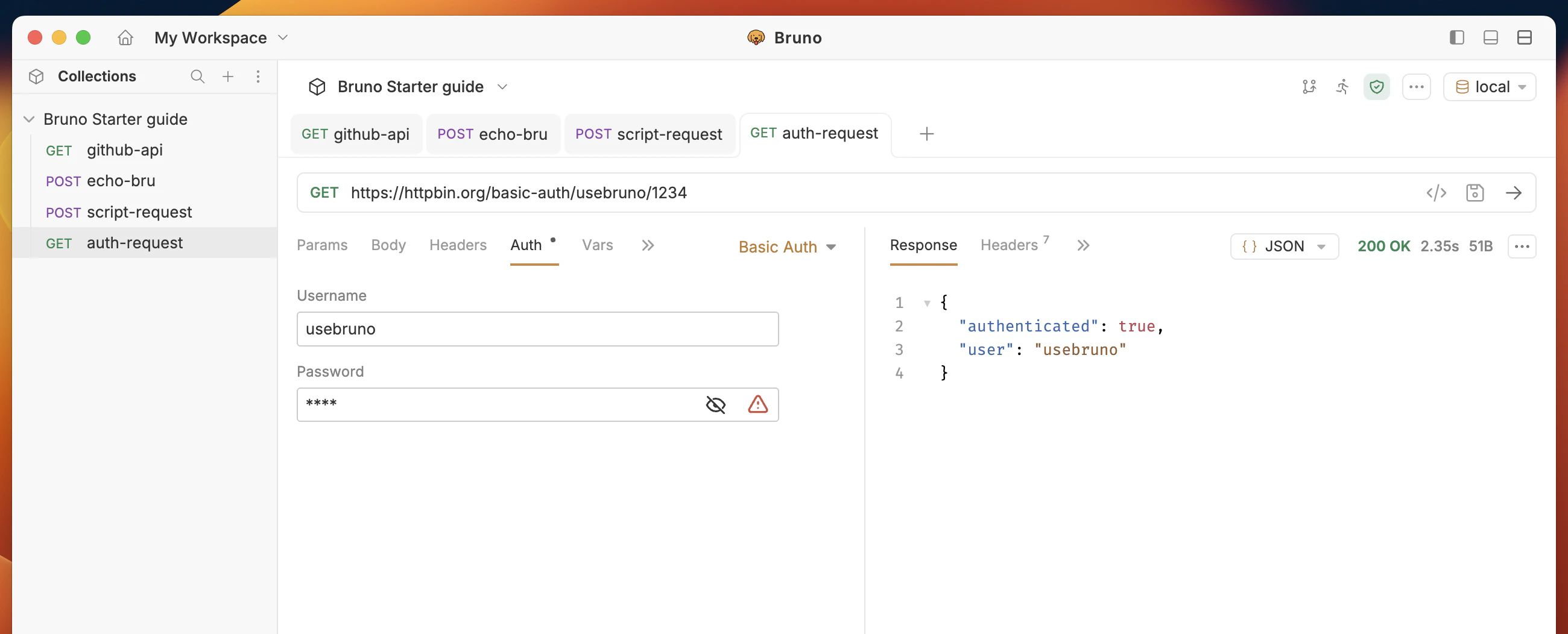
authenticated set to true in the response body.
You have successfully sent a request with authentication to the API.
Success Criteria:
- Authentication is set to Basic Auth with the username and password.
- Response body contains
authenticatedset totrue.
8. Collection Runner
Objective: Run all requests in the collection using collection runner.- Go to the collection context menu (…) and click Run.
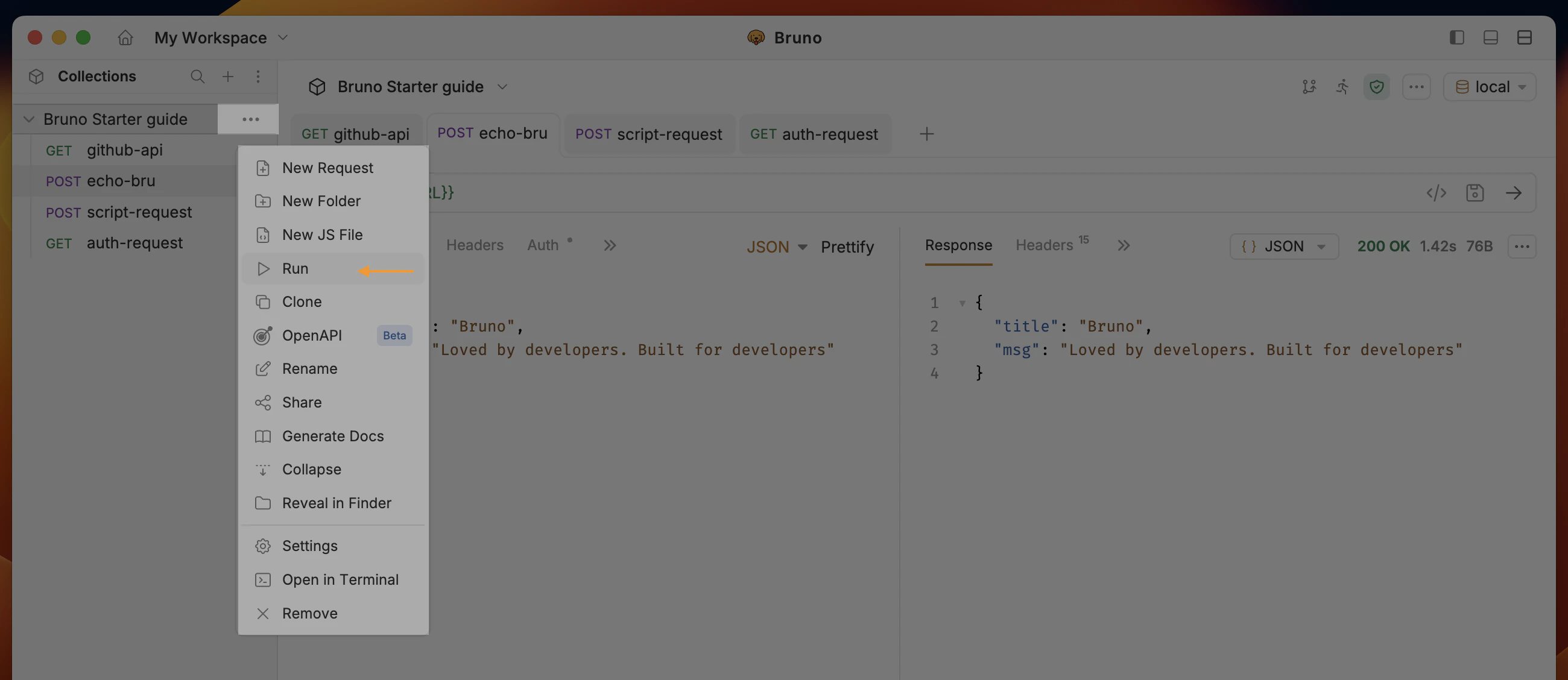
- Click on Configure requests to run and select all requests in the collection.
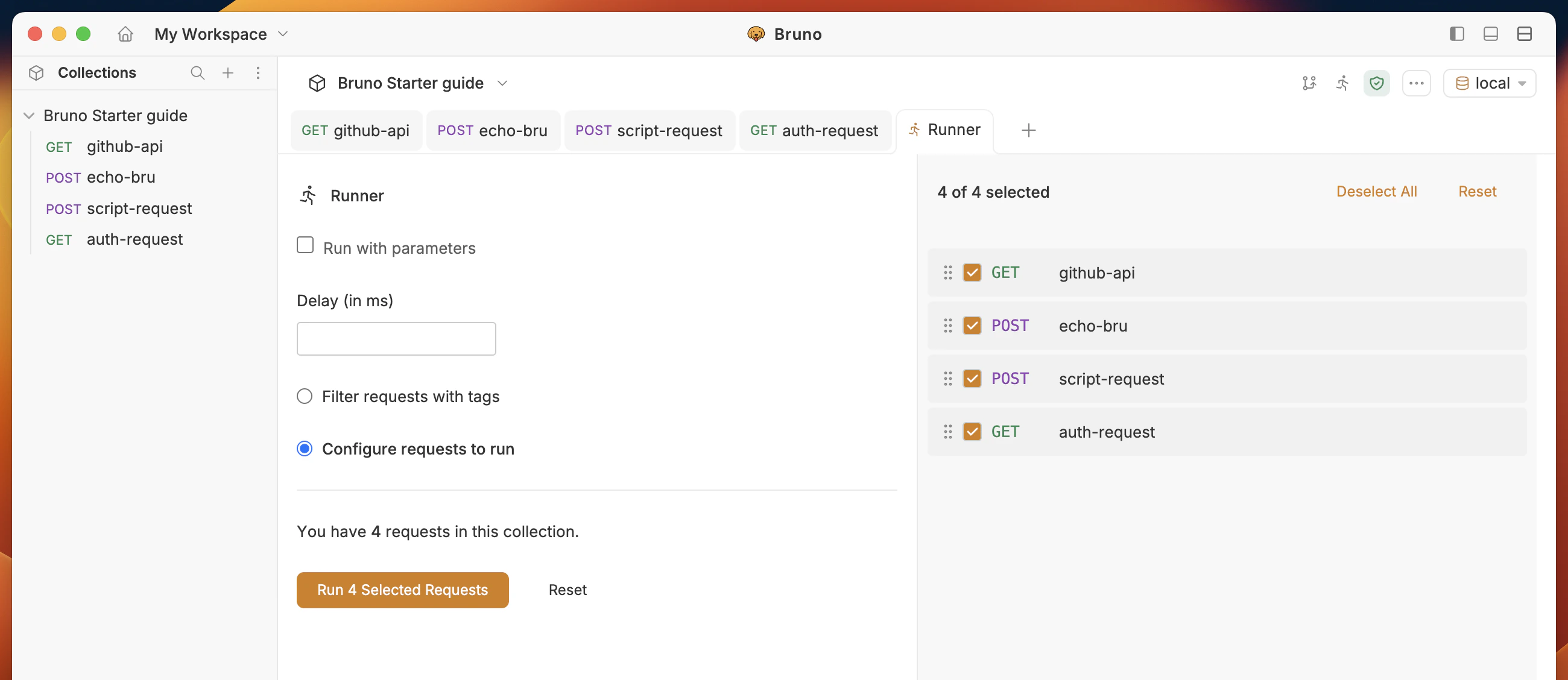
- Click Run Selected Requests button to start the run.
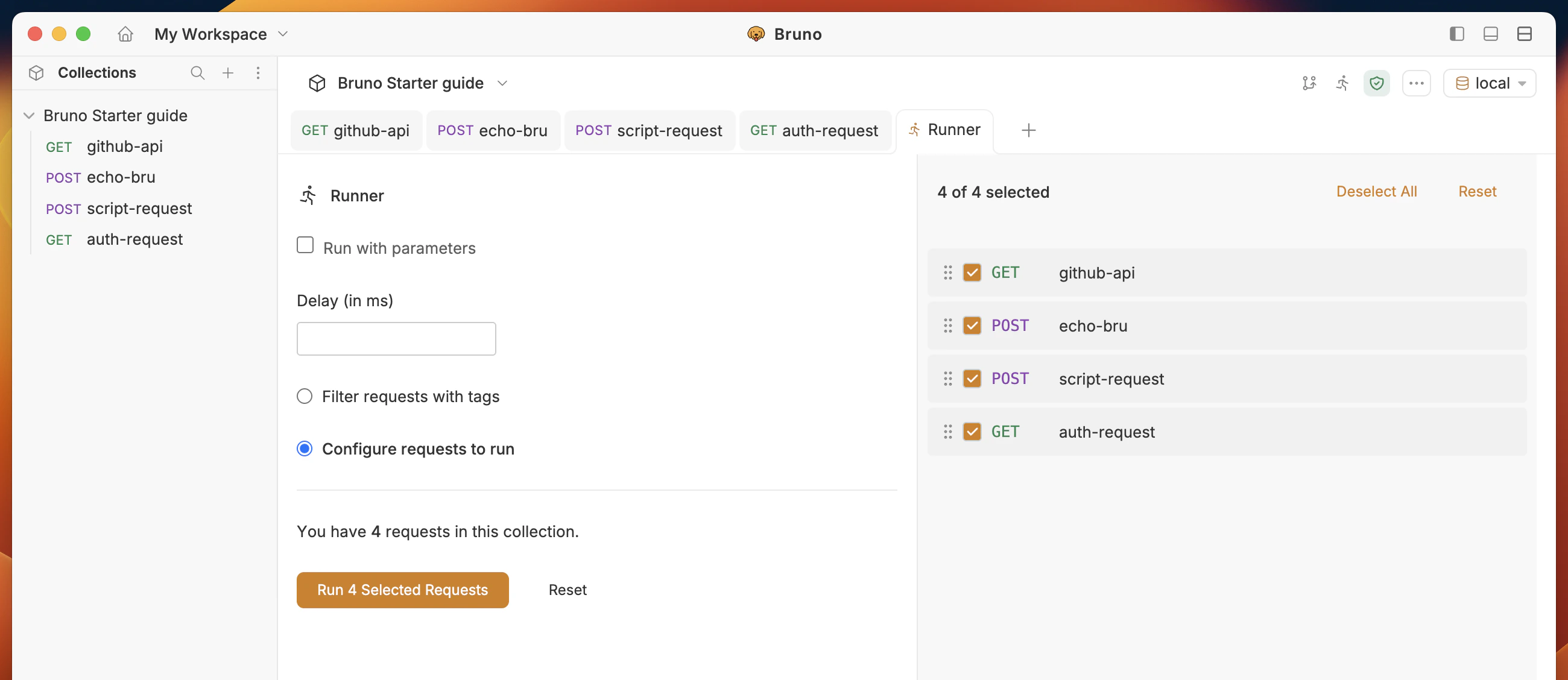
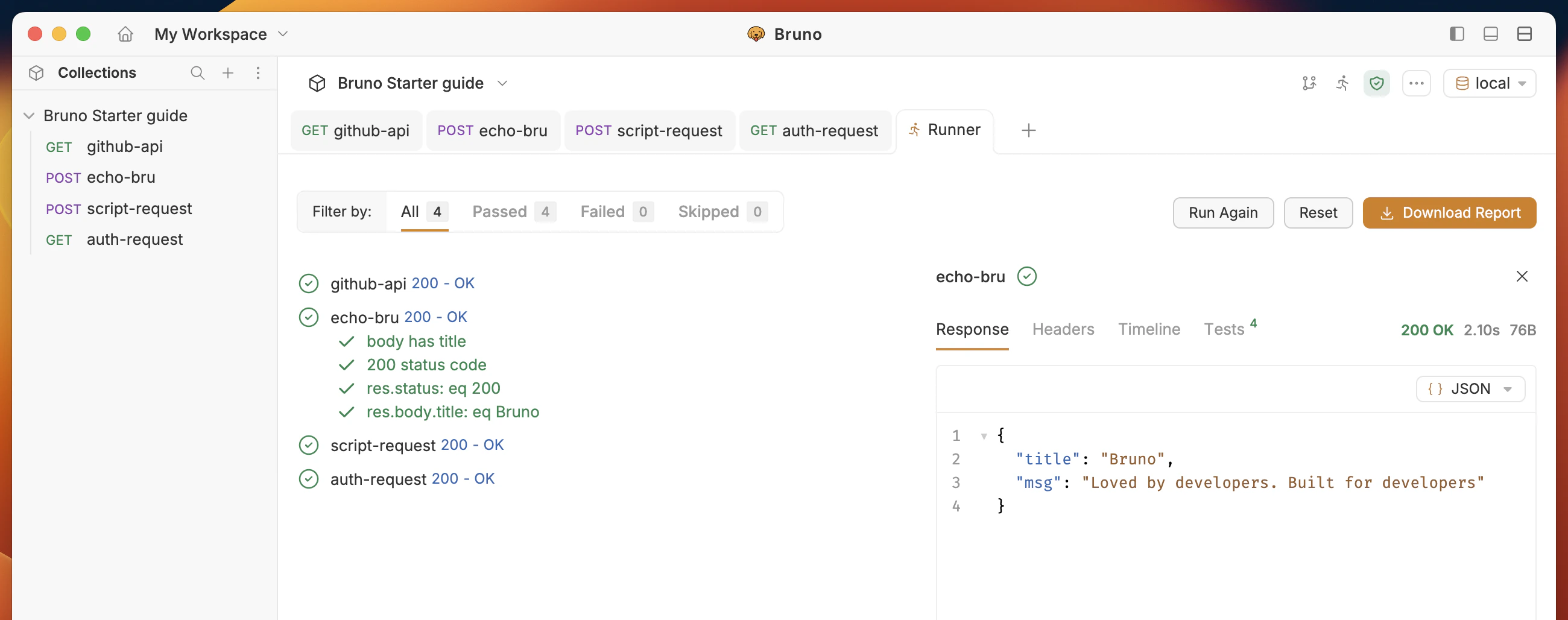
- All requests are running one by one in the collection runner.
- Response status is 200 for all requests.
- Response body contains the data of the request.
9. API Documentation
Objective: Create automated API documentation for the collection.- Go to collection context menu (…) and select Generate Docs.
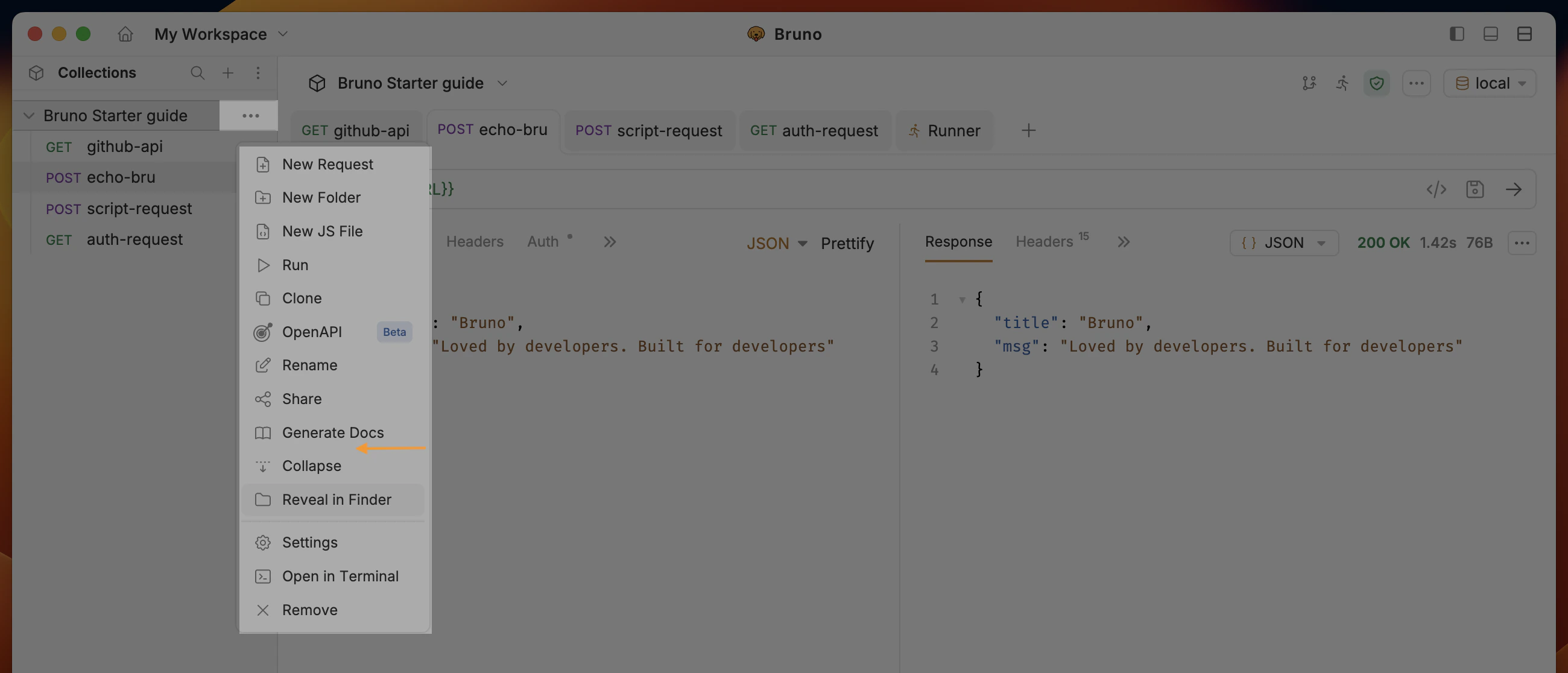
- Click on the Generate button to generate automated API documentation.
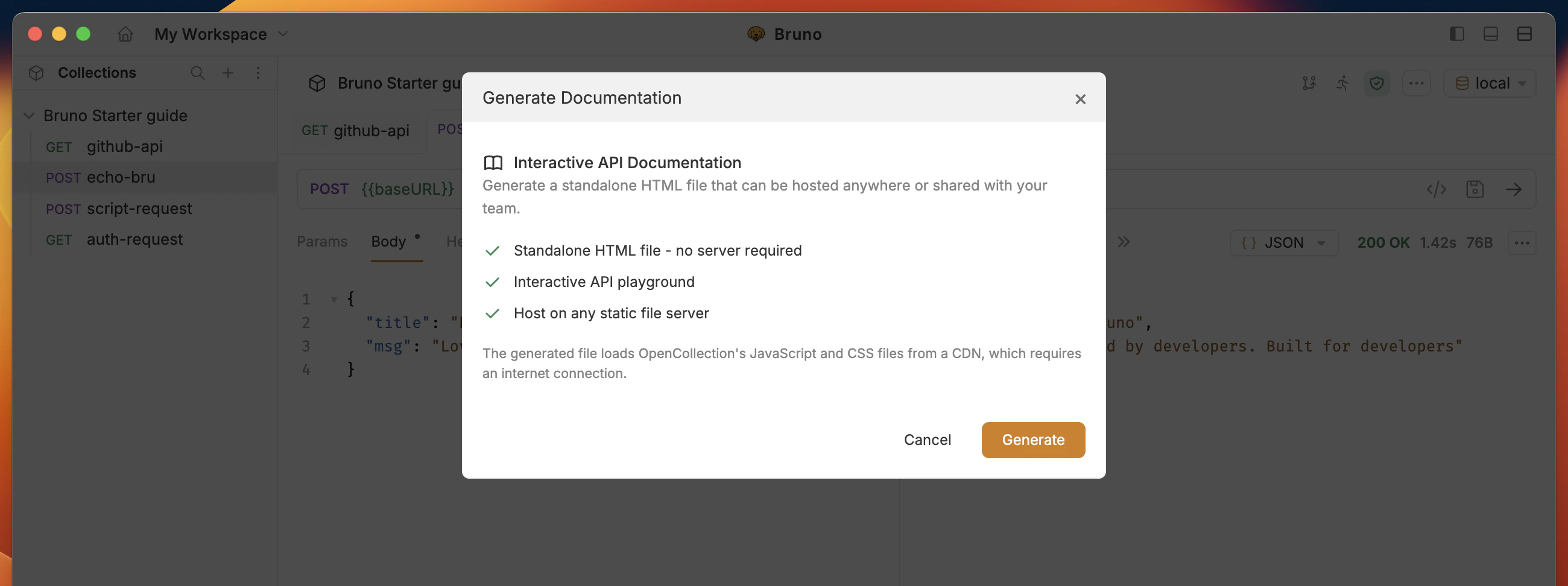
- Save the documentation file (html) to your desired location.
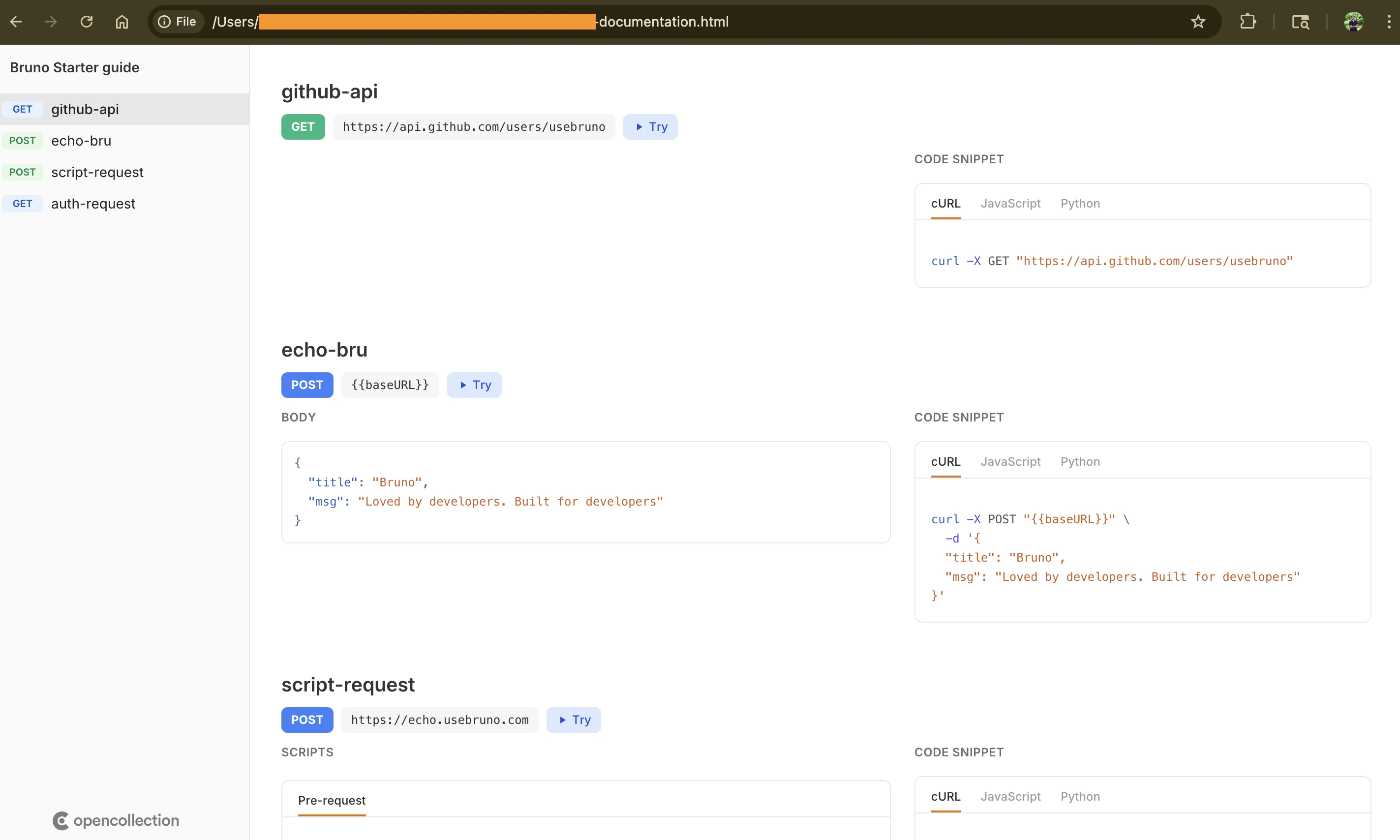
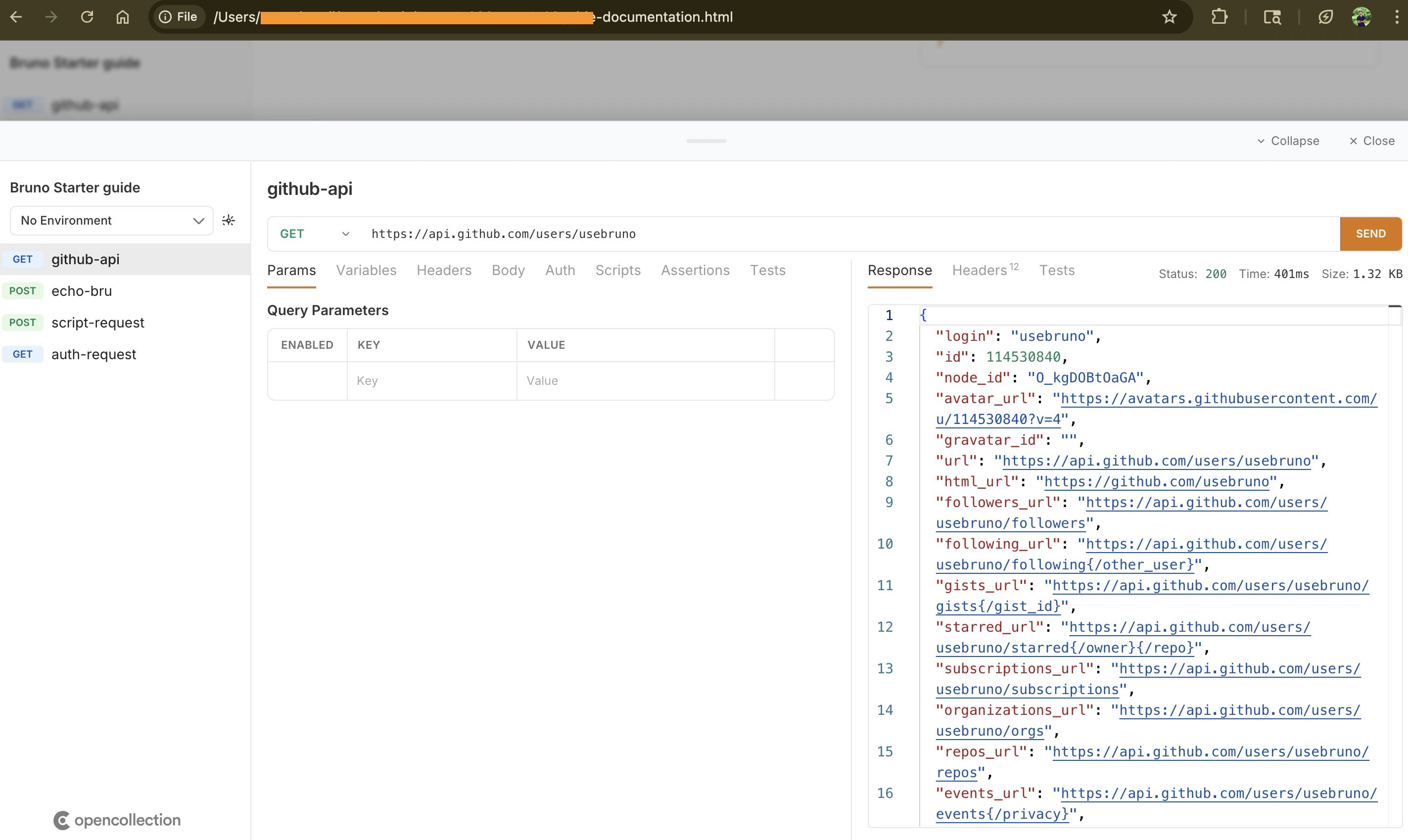
- API documentation is created for the collection.
- HTML file is generated with the content of the collection.
10. Git collaboration
Objective: Initialize Bruno collection as a Git repository, push it to GitHub.Bruno 3.0+: Git basic UI features are available in the open-source app. See Git integration (GUI).
- Open the Git panel (top bar) and click Initialize to turn the collection folder into a repository.
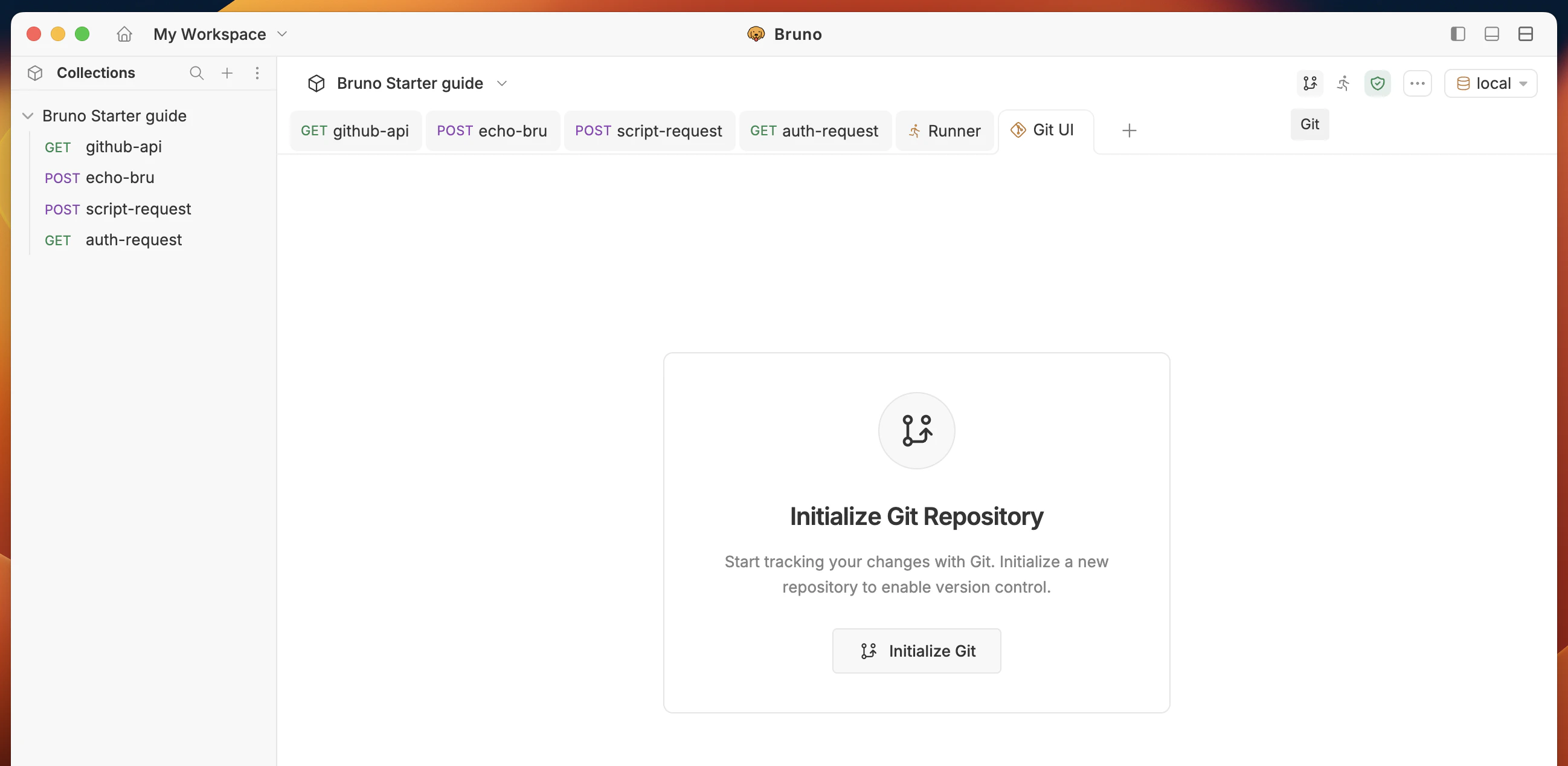
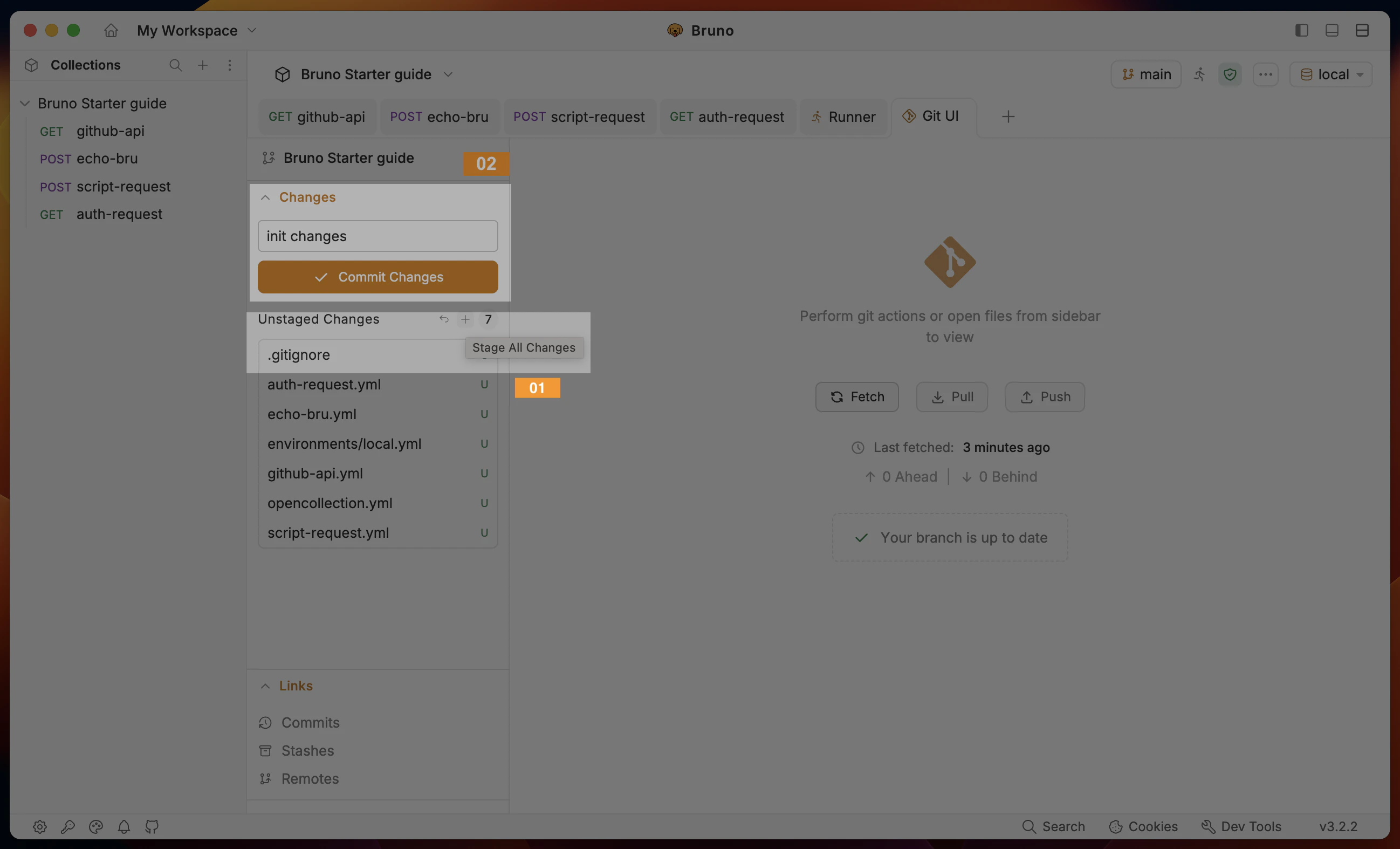
- Stage and commit your changes from the Git panel (or use
git addandgit commitcommands in a terminal).
- Go to GitHub
- Create an empty repository (click on the + button and select New repository)
- Enter name bruno-starter-guide and other details and copy the HTTPS URL
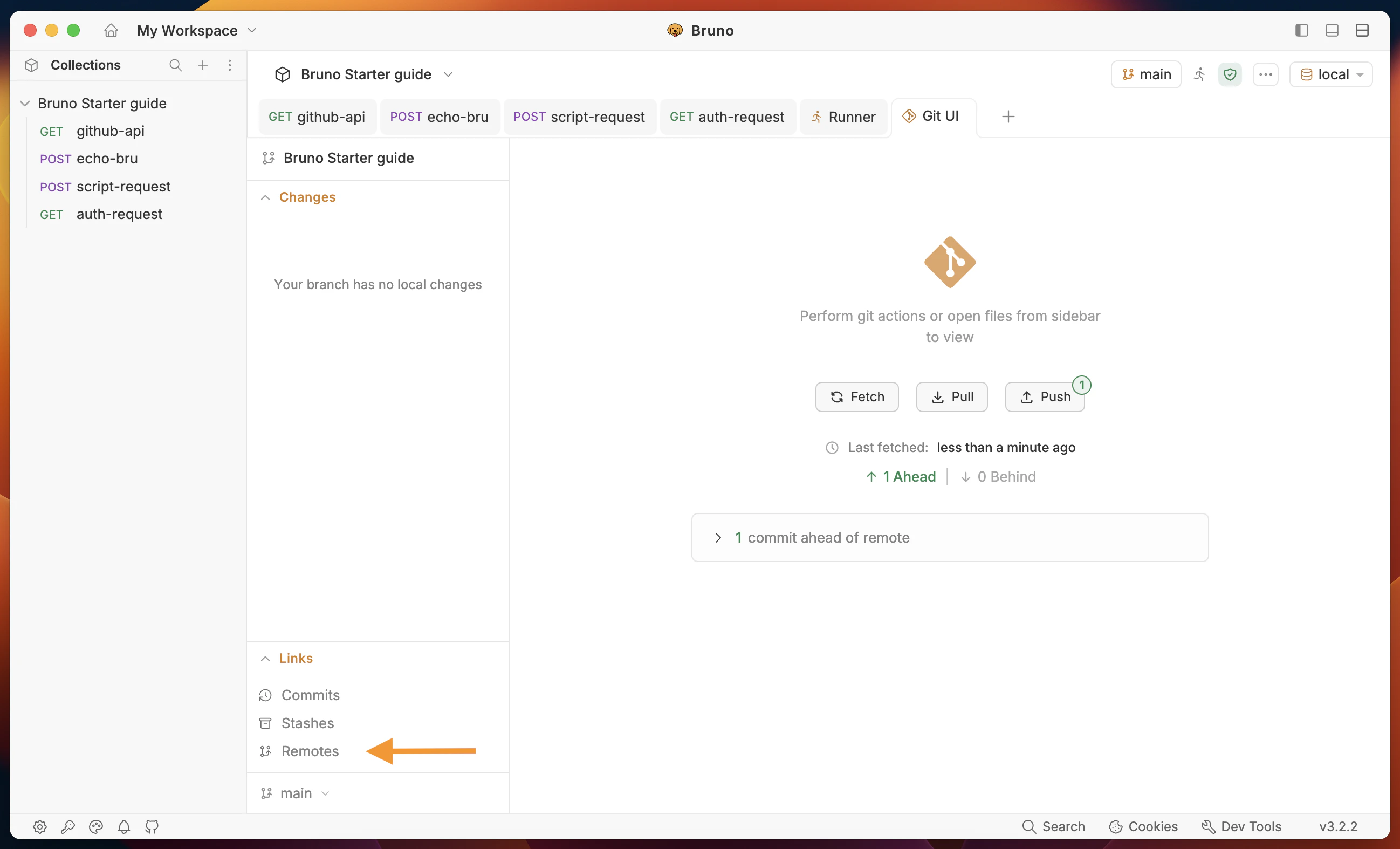
- Go to collection Git panel and click on Remotes from bottom-left corner.
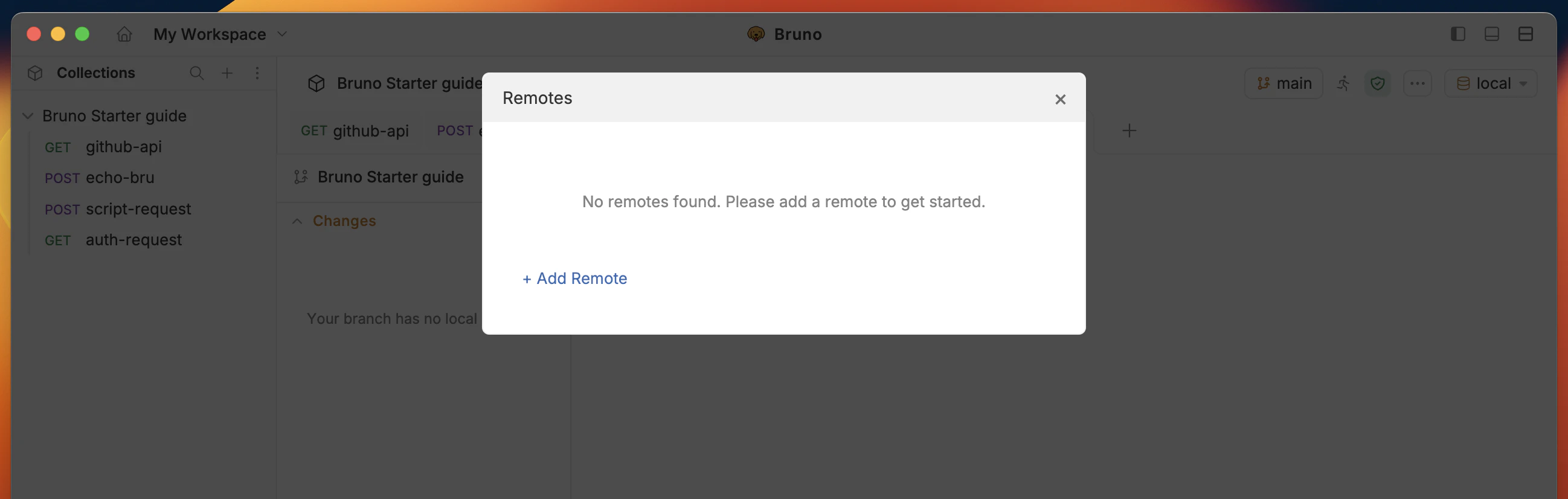
- Click the Add Remote button and enter the following details:
- Remote Name:
origin - URL:
https://github.com/<<yourusername>>/bruno-starter-guide.git
- Remote Name:
- Push your default (main) branch to the remote repository.
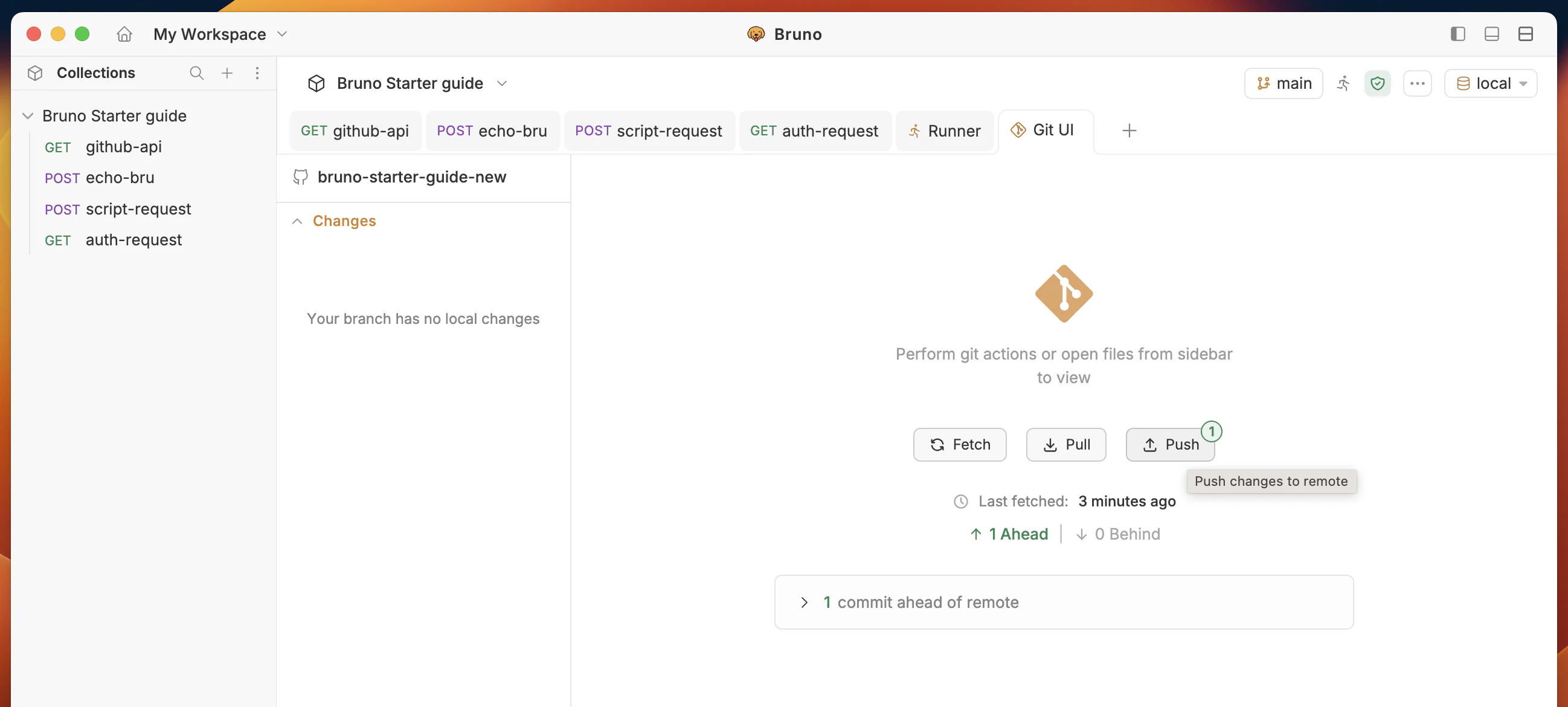
- Git repository is initialized for the collection.
- Remote repository is created and connected.
- Collection is pushed to the remote repository.
11. Run a request through the CLI
Objective: Install Bruno CLI and run all requests in the collection from a terminal.Make sure you have Node.js installed on your system.
- Install Bruno CLI:
- Open a terminal and navigate to the Bruno Starter Guide collection (folder with
bruno.json).
- Run all requests:
- Optional: run with a named environment, e.g.:
- All requests are running one by one in the collection runner.
- Response status is 200 for all requests.
- Response body contains the data of the request.
12. OpenAPI specification
Objective: Export your collection as an OpenAPI document (shareable API description).- Open the collection context menu (…) and select the Share option.
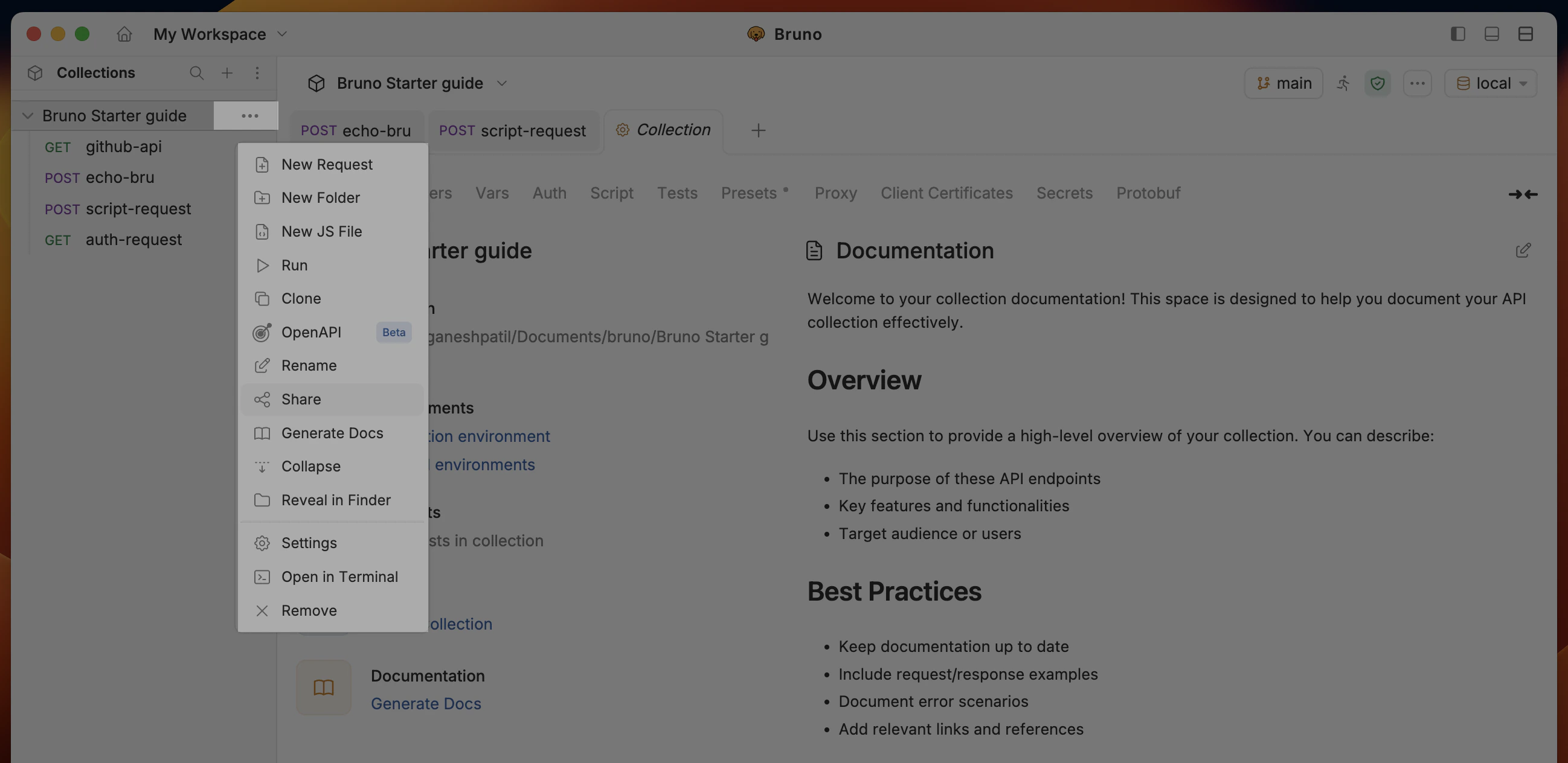
- Go to the Export tab, select OpenAPI Specification and click the Proceed button.
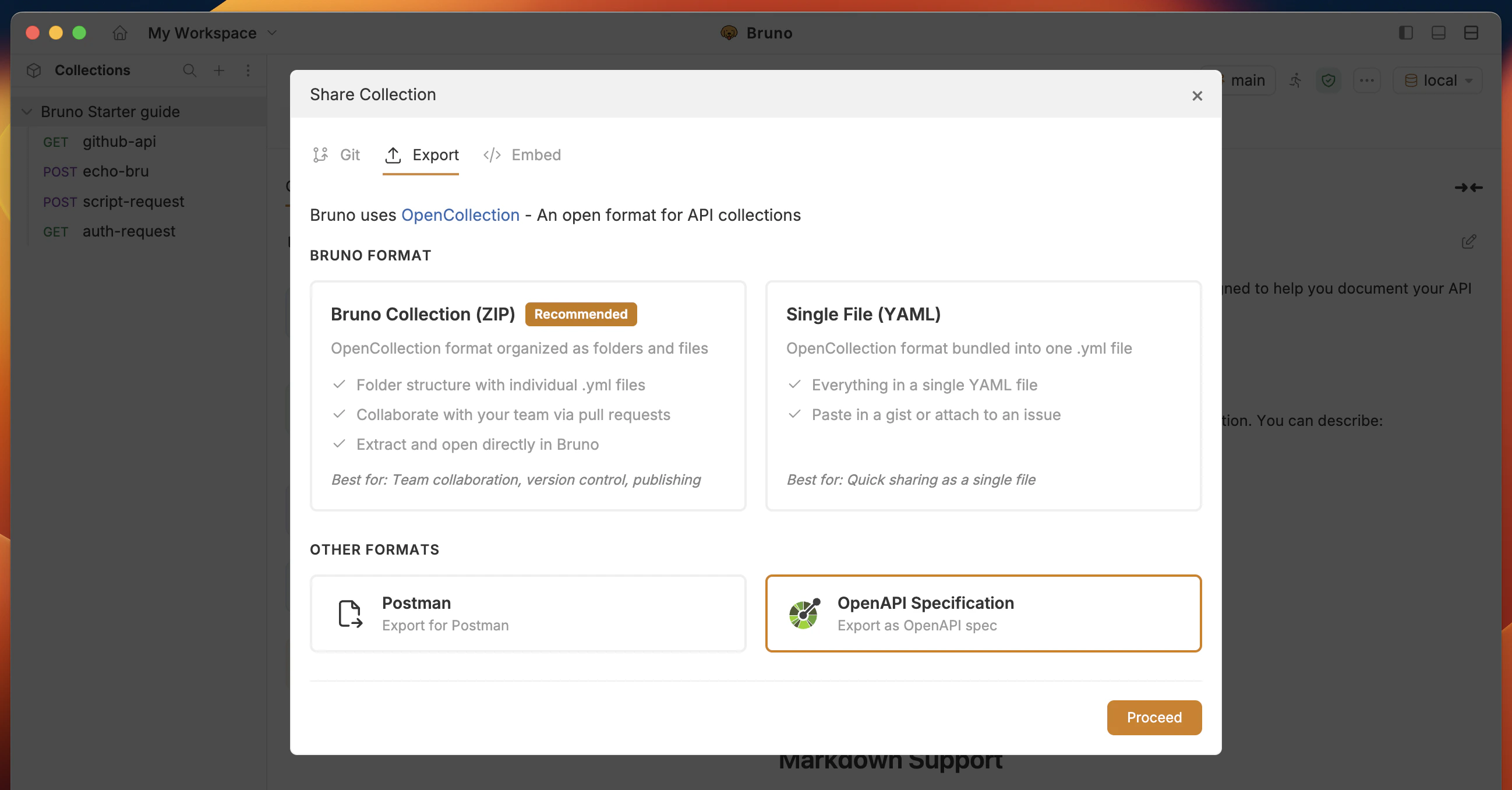
- Enter the name of the file and location, then click the Create button.
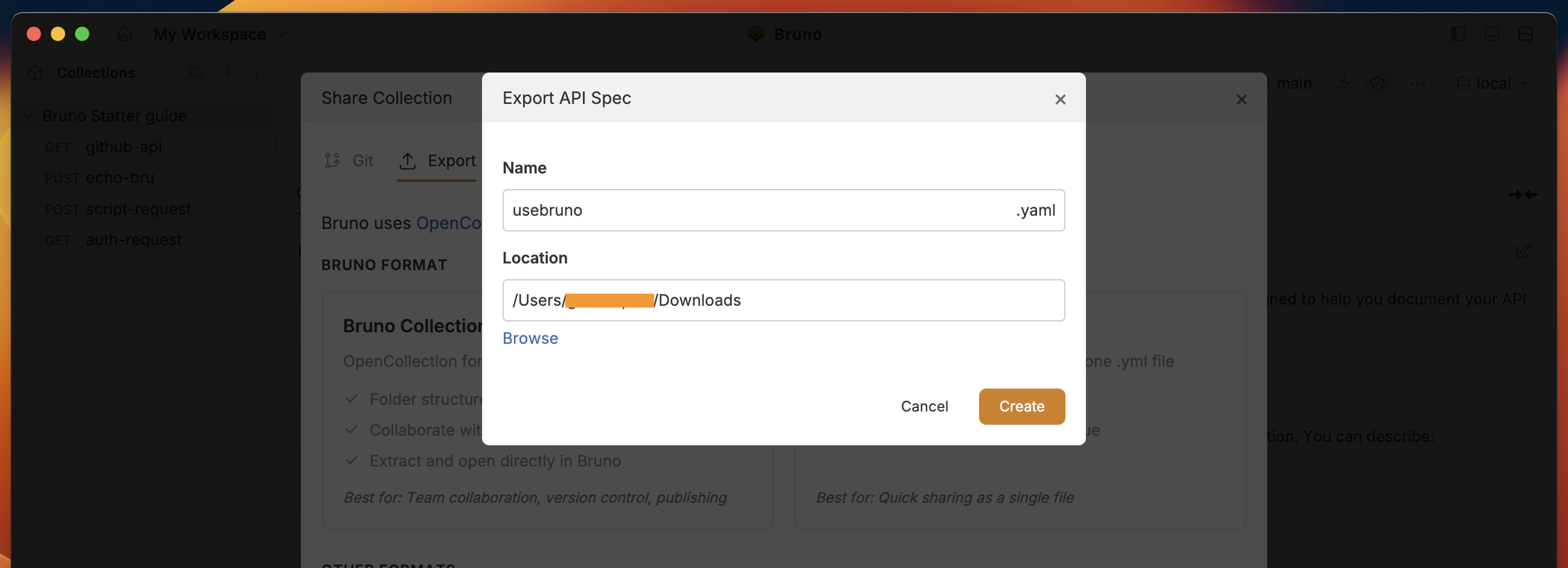
.yaml extension and stored in your file system.
You can view and import the OpenAPI file in Bruno. Please refer to OpenAPI Specification for more details.
Success Criteria:
- OpenAPI file is created where you chose and opens without errors
- Exported OpenAPI file has a
.yamlextension.
Congratulations on completing the Quick Start guide! You have learned the basics of Bruno and how to use it to create API requests. Feel free to dive into the advanced guides to learn more about Bruno.
- Auth — Authentication
- Secrets — .env and secret managers
- Git Collaboration — Git integration (GUI)